Your DSCSA documents in the customer portal
Core module For: Customer (portal) Checked on 18.0.0.2.0
Your supplier keeps a DSCSA document for each delivery of prescription drugs it ships to you. The document holds the transaction information, the transaction history and the transaction statement of that sale, as a PDF report (the "T3" report) and as an EPCIS (Electronic Product Code Information Services) file (XML, the standard data file that pharmacy systems read). The customer portal lets you find these documents, read them and download them, whenever you need them.
Before you start
- Your supplier has given you access to its customer portal: you received an email "Your account at …" and set your password from it. If you have no access, ask your supplier to give you access.
- You know the address of your supplier's portal (it is in the invitation email).
Find and download your DSCSA documents
-
Open your supplier's portal, enter your Email and Password, and select Log in.
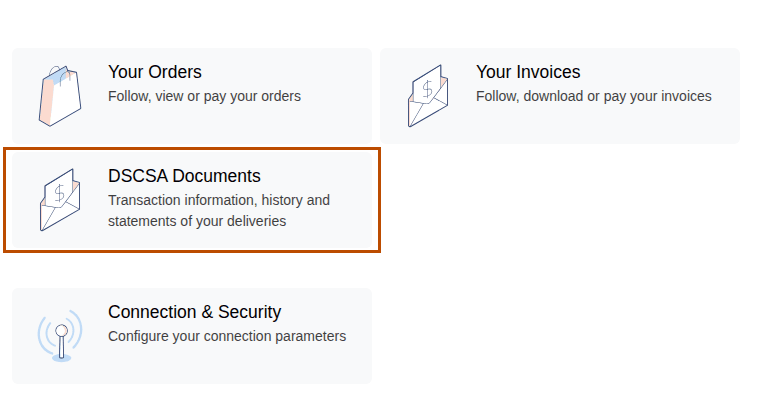
Result: the My account page opens, with cards such as Your Orders, Your Invoices and DSCSA Documents ("Transaction information, history and statements of your deliveries").
-
Select DSCSA Documents.
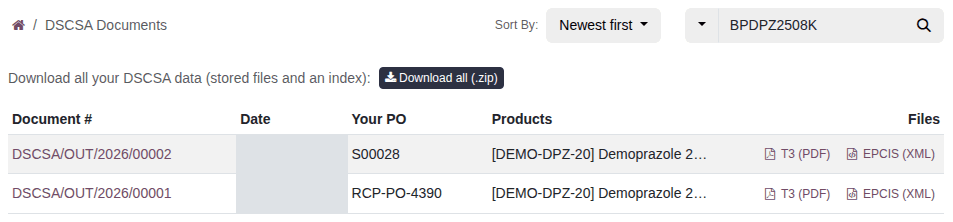
Result: the list of your documents, newest first, with Document #, Date, Your PO (your purchase order number, or your supplier's order number if you gave none), Products and Files.
-
To find a document, select the ▾ at the left of the search box and choose what to search: Search in all, Search in document number, Search in PO number, Search in lot or Search in NDC (National Drug Code). Type the value and press
Enter.Result: the list shows the matching documents, or "No DSCSA document matches your search.". An NDC is found in any form: 10 or 11 digits, with or without hyphens; a GTIN (Global Trade Item Number, the 14-digit product number of the barcode) works too.
-
To change the order of the list, select Sort By and choose Newest first, Oldest first or Number.
-
Select a document number to open it.
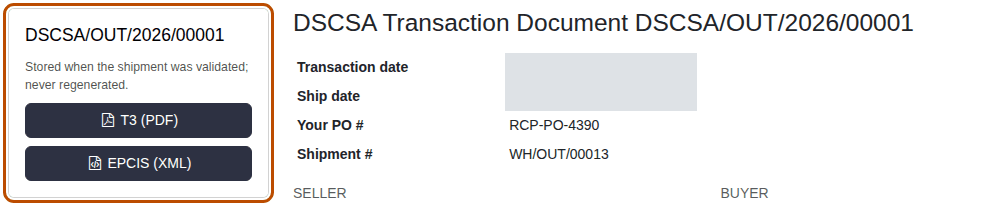
Result: the page "DSCSA Transaction Document" with the document's number, "Stored when the shipment was validated; never regenerated.", the dates, Your PO # and Shipment #; the Seller, Buyer, Ship From and Ship To with their GLN (Global Location Number, the number that identifies a company or a site) and licenses; the Products with NDC, lot, expiry and quantity; the Transaction Statement; and the Transaction History. Select "3 serial number(s)" under Serial numbers to list the serial numbers.
-
Select T3 (PDF) to download the report, or EPCIS (XML) to download the data file.
Result: your browser downloads the file, for example
T3-DSCSA-OUT-2026-00001.pdforEPCIS-DSCSA-OUT-2026-00001.xml.
Result: you have the document's files. They are the files your supplier stored when the shipment left: each download gives the same file. The T3 (PDF) and EPCIS (XML) links in the list download the same files without opening the document.
Download all your documents at once
-
In the DSCSA Documents list, select Download all (.zip).
Result: your browser downloads
dscsa-documents.zip. It has one folder per document with its T3 report and EPCIS file, and anindex.csvfile with one line per product and document: document number, dates, purchase order, invoice, shipment, product, NDC, lot, expiry, quantity, number of serial numbers, and each file's name and SHA-256 checksum (a fingerprint that shows the file is unchanged).
From one of your orders
-
On My account, select Your Orders and open the order.
Result: below the order, the DSCSA Documents section lists the documents of its deliveries, with their T3 (PDF) and EPCIS (XML) links.
Open a document link sent by email
Your supplier can send you the link to one document by email. The link opens that document without signing in.
-
In the email from your supplier, select View DSCSA Transaction Document.
Result: the document's page opens in your browser, as in Find and download your DSCSA documents step 5.
-
Select T3 (PDF) or EPCIS (XML).
Result: your browser downloads the file.
Result: you have the document's files. The link opens only this document. Anyone who has the link can open it, so keep the email within your company.
If something doesn't work
- You forgot your password: select Reset Password on the sign-in page, if your supplier's portal offers it. Otherwise ask your supplier to send you a new invitation.
- There is no DSCSA Documents card on My account: there is no document for your company yet. The card appears after your first delivery of prescription drugs. If you expected documents, ask your supplier.
- A document you expect isn't in the list: for example, the order was delivered to another company's address, and the document was issued to that company. Ask your supplier to send you the document.
- A page says "Error 404" and "We couldn't find the page you're looking for!" (or "Not Found"): the document isn't one of your company's, or its address was changed. Ask your supplier to send you the document's link.
- A link from an email opens the sign-in page although you expected the document: the link was changed or cut off. Ask your supplier to send it again.
- An order page says "This order's DSCSA documents are available in your customer account: sign in to download them.": you opened the order from an email without signing in. Sign in to the portal (step 1 above), or ask your supplier for portal access.
- Signing or paying an order online doesn't go through (the button keeps turning, or "This order can't be paid online yet."): your supplier has to update your company's license information first. Ask your supplier.