The owner portal: send your supplier's data
3PL add-on For: 3PL owner (portal) Checked on 18.0.0.2.0, 18.0.1.0.0
Your suppliers send their transaction information and statement for each purchase to you, because you own the goods, while the goods go to your 3PL. Your 3PL needs that data to receive the goods and to keep them available for sale. The owner portal lets you upload the supplier's file to the receipt it belongs to, before the goods arrive or after, instead of emailing it.
The supplier's data comes in one of two forms:
- an EPCIS file (
.xml): the standard data file that lists each unit with its serial number, lot and expiry. Your 3PL's system reads it at once. - a transaction statement as a PDF (
.pdf), for example a T3 report (transaction information, history and statement) or a packing slip. Your 3PL's staff check it and record it.
Before you start
- You can sign in to your 3PL's owner portal (see the first handout, The owner portal: your stock and documents).
- You have your supplier's file on your computer, and it is for goods your 3PL receives for you: in an EPCIS file (Electronic Product Code Information Services) your company is the buyer (with its GLN, the Global Location Number that identifies it) and your 3PL's warehouse is where the goods are shipped.
- Your 3PL has created the receipt for the goods. It shows on the Receipts page with your purchase order number. If it doesn't, ask your 3PL.
Upload your supplier's EPCIS file before the goods arrive
Upload the file as soon as your supplier sends it to you. With the file recorded before the goods arrive, your 3PL receives them against it and doesn't have to hold them for missing data.
-
On My account, select Receipts Awaiting Supplier Data (or select the Receipts tab on any owner page).
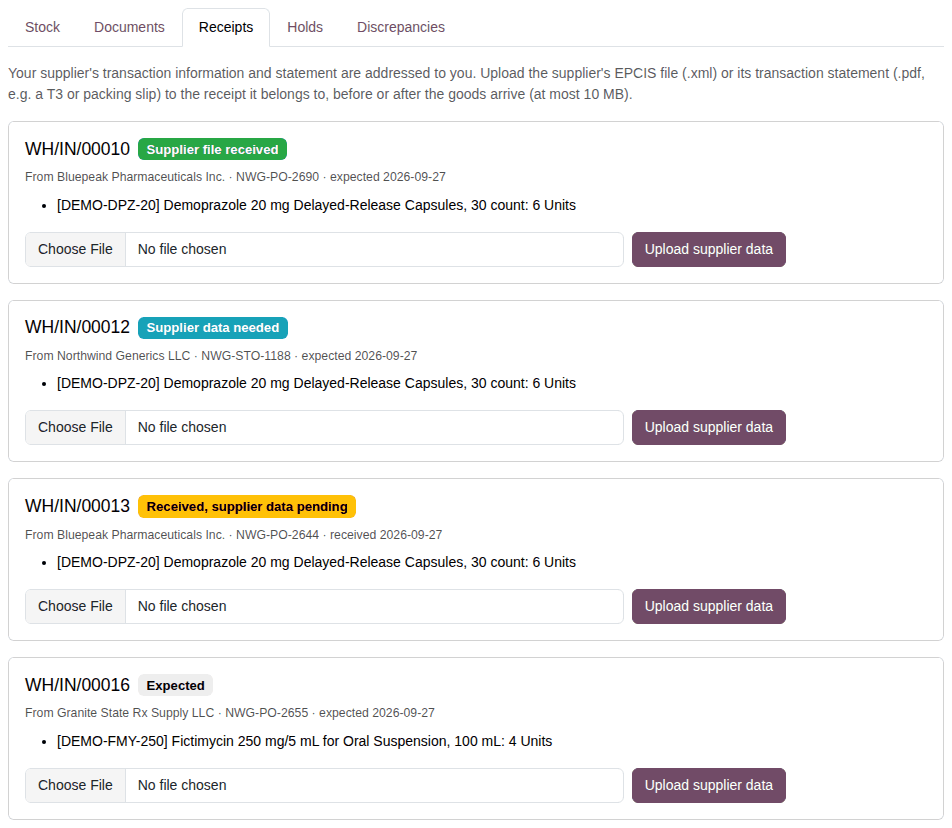
Result: the Receipts Awaiting Supplier Data page lists one card per receipt that takes your supplier's data: the receipt number, a badge, "From SUPPLIER · YOUR-PO-NUMBER · expected DATE" (or "received DATE"), the products with their quantities, and an upload field with Upload supplier data. The page says you can upload files of at most 10 MB.
-
Find the card of the goods: the purchase order number in its "From" line is the one on your supplier's file. Read its badge:
Badge What it means What you do Supplier data needed the goods are expected; your 3PL has no supplier data for them yet upload the file (this procedure) Supplier file received a supplier file is recorded for the receipt and waits for the goods nothing, unless the file was wrong: then upload the corrected one Expected the goods are expected; your 3PL needs nothing more from you for now nothing; you may still upload the file Received, supplier data pending the goods arrived before the supplier's data; your 3PL holds them until the data arrives see Send the supplier's data for goods already received -
On that card, select Choose File (the label depends on your browser, for example Browse…) and choose the supplier's
.xmlfile. -
Select Upload supplier data.
Result: the page reloads at the receipt with a green message, shown once:
FILE-NAME was imported for RECEIPT: N unit(s) announced. They are checked against the goods when the receipt is validated.The card's badge is now Supplier file received.
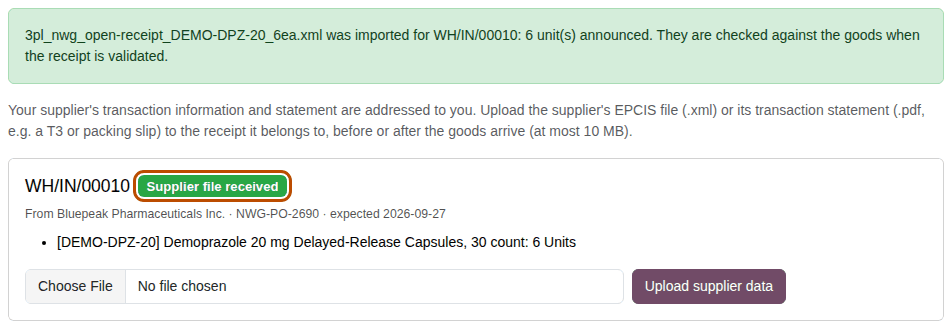
Result: your 3PL has the supplier's file for the receipt, and its staff see who uploaded it. When the goods arrive, your 3PL checks them against the file; any difference shows on the Discrepancies tab, and the receipt leaves the Receipts page once it is received. A red message instead of the green one means that nothing was recorded: see Understand a refused upload and what to do next.
Upload a corrected file
If you uploaded the wrong file and the supplier sends you a corrected one before the goods arrive, upload the corrected file to the same receipt (steps 3–4). The green message names the new file, and it replaces the earlier one.
Send the supplier's data for goods already received
When the goods reach your 3PL before the supplier's data, your 3PL receives them and holds them: nobody can ship them until the data arrives. The receipt then shows the badge Received, supplier data pending, the lot is on the Holds tab and a Supplier Data Pending discrepancy is on the Discrepancies tab.
-
On My account, select Receipts Awaiting Supplier Data (or the Receipts tab).
-
Find the card with the badge Received, supplier data pending ("received DATE") and your purchase order number.
-
On that card, select Choose File and choose the supplier's
.xmlfile. (For a PDF, see Upload the supplier's transaction statement as a PDF.) -
Select Upload supplier data.
Result: a green message, shown once:
FILE-NAME was recorded for RECEIPT: N received unit(s) matched. The supplier data of the receipt is no longer pending.The receipt is no longer on the Receipts page.
Result: your 3PL has the supplier's data for the goods it received. On the other tabs:
- Documents: a new document "Received for you" with the receipt's purchase order number.
- Discrepancies (filter All): the Supplier Data Pending discrepancy is Resolved. If the file and the goods differ (a unit missing, extra, of another lot, or already recorded), each difference is a new Open discrepancy.
- Holds: the lot is released and leaves the page, unless something else still holds it, such as one of those differences. Your 3PL resolves the differences and releases the lot.
Upload the supplier's transaction statement as a PDF
Upload a PDF when the supplier gave you its transaction statement as a document (a T3 report, a packing slip) instead of an EPCIS file. A person at your 3PL checks and records it, so nothing changes on the portal at once.
-
On My account, select Receipts Awaiting Supplier Data (or the Receipts tab).
-
Find the card of the goods (any badge), and select Choose File on it. Choose the
.pdffile. -
Select Upload supplier data.
Result: a green message, shown once:
FILE-NAME was received for RECEIPT. Our DSCSA team records it after checking it.The card and its badge don't change.
Result: the PDF is on the receipt at your 3PL, and its staff are asked to check and record it. Until they do, a receipt with the badge Received, supplier data pending stays on the page and its lot stays on hold. If you also have the supplier's EPCIS file, upload it as well: your 3PL's system reads it at once.
Understand a refused upload and what to do next
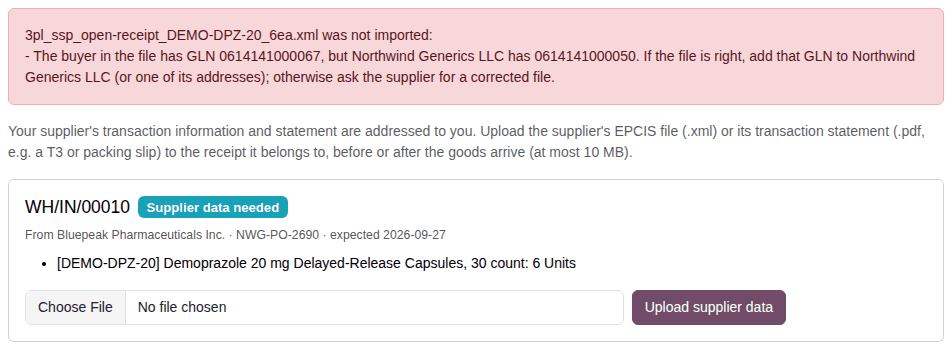
A refused upload records nothing: the receipt stays as it was, and you can upload again. Most refusals show a red message at the top of the Receipts page, once. Your 3PL's staff see each refusal on the receipt, except those of the first four lines of the table.
| What you see | What it means | What to do |
|---|---|---|
| "Choose the supplier's file to upload." | the file you chose is empty | Choose the right file and upload again. |
| "FILE-NAME can't be uploaded: only the supplier's EPCIS file (.xml) or its transaction statement as a PDF (.pdf) are accepted." | the file is neither an EPCIS file nor a PDF, or its name ends in .xml or .pdf but its content isn't one (for example a renamed text file or a spreadsheet) | Upload the supplier's EPCIS file or its PDF itself. |
| "FILE-NAME is too large: files up to 10 MB can be uploaded." | the file is just over 10 MB | Send the file to your 3PL by email or ask it how to send large files. |
| A page that says only "Request Entity Too Large" and "The data value transmitted exceeds the capacity limit." | the file is far over 10 MB | Go back with your browser's back button, then send the file to your 3PL as for the previous line. |
| "FILE-NAME was not received: 10 files were already uploaded to RECEIPT in the last 24 hours. Please try again tomorrow, or send the file to our DSCSA team." | 10 files were already accepted on this receipt in the last 24 hours (refused uploads don't count) | Upload again once 24 hours have passed since the earliest of those uploads, or send the file to your 3PL. |
| "FILE-NAME was not imported: some serial numbers it lists are already expected on another receipt. Our DSCSA team has been told and will contact you." | serial numbers in the file are expected on a receipt that isn't yours | Wait for your 3PL to contact you. Check with your supplier that the file is for this shipment. |
| "FILE-NAME was not imported:" followed by a line starting "- The buyer in the file has GLN …" | the file is addressed to another buyer than your company | Check with your supplier that the file is for your purchase; ask it for a corrected file. If the GLN in the file is yours, ask your 3PL to add it to your company. |
| "FILE-NAME was not imported:" followed by "- The file ships the goods to location GLN …" | the file sends the goods somewhere else than your 3PL's warehouse | Ask your supplier for a corrected file that ships to your 3PL's warehouse. |
| "FILE-NAME was not imported:" followed by "- None of the packages the file lists was received on RECEIPT: is it the right file?" | on a received receipt: the file is for other goods | Check that you chose the right file and the right receipt. |
| "FILE-NAME was not imported:" followed by another reason | the file doesn't match the receipt or can't be read (another product, no lot, a damaged file…) | Check with your supplier that the file is for this shipment; send the reason to your 3PL if you need help. |
| A page "Error 404" ("We couldn't find the page you're looking for!") after Upload supplier data | the receipt no longer takes uploads (your 3PL has just received it with its data, or cancelled it), or your account with your 3PL has ended | Go back to the Receipts page and reload it. If the receipt is still listed, ask your 3PL. |
| A page "Oops! Something went wrong." after Upload supplier data | the page was open so long that your session expired | Go back, reload the Receipts page, and upload the file again. |
Known issue (PF-A09-06, PF-A09-02): a file far over 10 MB, or a page left open until the session expired, ends on a bare error page ("Request Entity Too Large", or "Oops! Something went wrong." with no message below it) instead of a red message on the Receipts page. After your service with your 3PL has ended, the Receipts page may still show upload fields, but each upload ends on "Error 404"; send the file to your 3PL instead.