The owner portal: your stock and documents
3PL add-on For: 3PL owner (portal) Checked on 18.0.0.2.0, 18.0.1.0.0
Your 3PL (the third-party logistics provider that stores and ships your prescription drugs) gives you an owner portal: a website where you see, at any time, the stock it holds for you, the DSCSA documents it keeps in your name, the receipts that wait for your supplier's data, the lots it holds back, and the differences it found between your supplier's data and the goods that arrived. The portal shows only your company's records: when companies of one group each store goods with the 3PL, each company is a separate owner, and your login shows the records of your own company only, never those of a parent or subsidiary company. You read them; you change nothing, except that you can send your supplier's files to a receipt (see the second handout, The owner portal: send your supplier's data).
A DSCSA document holds the transaction information, transaction history and transaction statement of one sale or purchase, as the Drug Supply Chain Security Act (DSCSA) names them, as a PDF report (the "T3" report) and as an EPCIS file (Electronic Product Code Information Services: XML, the standard data file that pharmacy and warehouse systems read).
Before you start
- Your 3PL has given you access to its owner portal. You received an email "Your account at …" from your 3PL. If you have no access, ask your 3PL to give you access to its owner portal.
- You know your 3PL's portal address. It is the address in the invitation email, up to the first
/after the name, for examplehttps://erp.example.com. This handout writes itPORTAL-ADDRESS.
Sign in to the owner portal for the first time
-
Open the email "Your account at YOUR-3PL" ("Welcome to YOUR-3PL's Portal! An account has been created for you with the following login: …") and select Activate Account.
Result: a page with Your Email and Your Name already filled in, and the fields Password and Confirm Password.
-
Enter a password in Password and again in Confirm Password.
-
Select Sign up.
Result: you are signed in, and the My account page opens. Your email address is your login from now on.
-
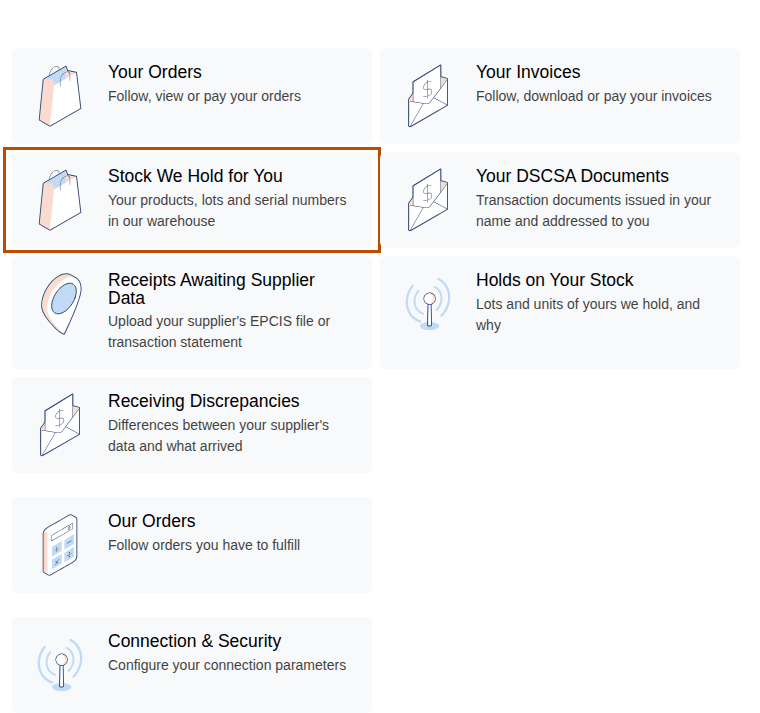
Look for the owner cards on My account: Stock We Hold for You, Your DSCSA Documents, Receipts Awaiting Supplier Data, Holds on Your Stock and Receiving Discrepancies.
Result: each card opens one page of the owner portal:
Card What the page shows Tab Stock We Hold for You your products, lots and serial numbers in your 3PL's warehouse Stock Your DSCSA Documents the transaction documents issued in your name and addressed to you Documents Receipts Awaiting Supplier Data your incoming receipts that take your supplier's EPCIS file or statement Receipts Holds on Your Stock the lots and units of yours that your 3PL holds, and why Holds Receiving Discrepancies the differences between your supplier's data and what arrived Discrepancies A card shows only when its page has something for you: for example Receipts Awaiting Supplier Data disappears when no receipt waits for data. Other cards, such as Your Orders or Connection & Security, are your 3PL's ordinary portal pages.
-
Select Stock We Hold for You.
Result: the Stock We Hold for You page opens, with the tabs Stock, Documents, Receipts, Holds and Discrepancies. Select a tab to go to another owner page; select the house icon at the top left to go back to My account.
-
Bookmark the page in your browser. Its address is
PORTAL-ADDRESS/my/dscsa/owner/stock.
Result: you can sign in to the owner portal and open each of its pages.
Known issue (PF-A09-01): while your 3PL holds no stock, document, receipt, hold or discrepancy of yours, for example right after
your access was set up, My account shows none of the five owner cards and no menu leads to the owner pages. Go to
PORTAL-ADDRESS/my/dscsa/owner instead (or your bookmark): it opens the Stock We Hold for You page and its tabs, which say "We hold
no stock for you at the moment." and similar lines until there is something to show.
Sign in later
-
Go to
PORTAL-ADDRESS/web/login, or open your bookmark. -
Enter your Email and Password, and select Log in.
Result: the My account page opens, or the bookmarked owner page.
If you forgot your password, select Reset Password on the sign-in page and follow the email you receive.
See the stock your 3PL holds for you
The Stock page shows what your 3PL's warehouse records for you now: the quantities by product and lot, and each serialized unit (one package with its own serial number) in your 3PL's custody.
-
On My account, select Stock We Hold for You (or select the Stock tab on any owner page).
Result: the page "Held for YOUR-COMPANY, as recorded in our warehouse now." with two tables:
- On hand by product and lot: Product, NDC (National Drug Code), Lot, Expiry and Quantity with its unit, for every product your 3PL stores for you, whether it is a prescription drug or not.
- Serialized units in our custody: Serial number, Product, Lot, Expiry and Status, 80 units per page, sorted by product, lot and serial number.
-
Read the Status of each unit:
Status What it means In Stock in your 3PL's stock, available to ship on your instruction Returned sent back by a customer, waiting at your 3PL to be checked Quarantined (yellow) on hold: nobody can ship it until your 3PL releases it (see the Holds tab) Missing your 3PL's records show the unit, but it was not found in the warehouse -
To find a unit, type a serial number or a lot in the search box (Serial or lot) at the top right, and press
Enter.Result: the Serialized units in our custody table shows the matching units, or "No unit matches your search.". The On hand by product and lot table doesn't change.
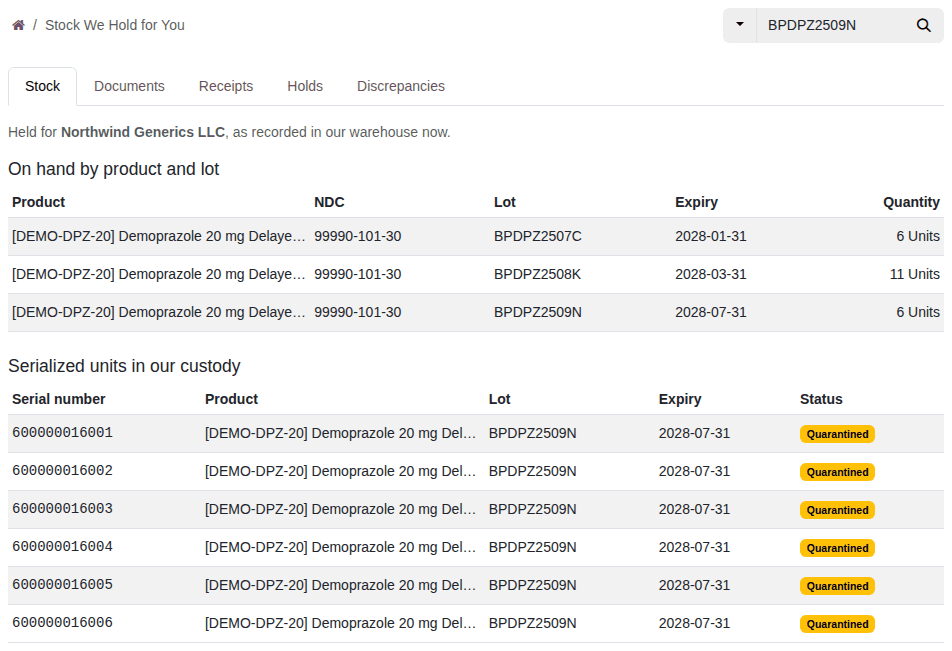
Result: you know which of your products, lots and units your 3PL holds, and their status. A unit disappears from the page once it is shipped. Stock that is on its way between two of your 3PL's sites doesn't show until it arrives.
Known issue (PF-A09-05): a unit counted as Missing stays in the Serialized units in our custody table, although your 3PL doesn't have it on its shelves, and the page leaves out stock on its way between your 3PL's sites. Your 3PL's own reports and the export it can make for you may therefore show other totals. If a figure doesn't match what you expect, ask your 3PL.
Find, open and download your DSCSA documents
The Documents page lists the DSCSA documents your 3PL keeps for you: those it issued in your name when it shipped your goods to your customers ("Shipped for you"), and those it recorded when it received goods for you ("Received for you").
-
On My account, select Your DSCSA Documents (or select the Documents tab).
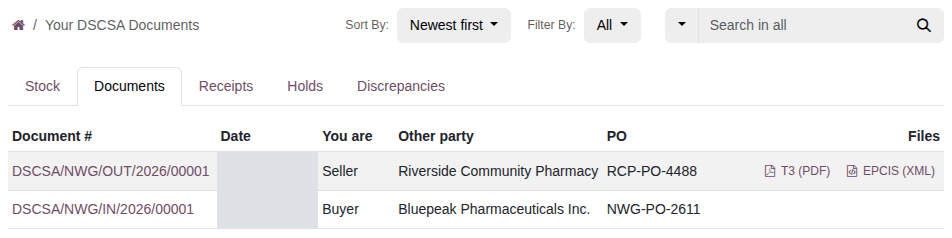
Result: the list of your documents, newest first, with Document #, Date, You are (Seller or Buyer), Other party, PO (the purchase order number) and Files. A document of a change of ownership while the goods stayed in your 3PL's warehouse carries the badge In place.
-
To see only one kind, select Filter By and choose All, Shipped for you or Received for you.
-
To find a document, select the ▾ at the left of the search box and choose what to search: Search in all, Search in document number, Search in PO number, Search in lot or Search in NDC. Type the value and press
Enter.Result: the list shows the matching documents, or "No DSCSA document matches your search.".
-
To change the order of the list, select Sort By and choose Newest first, Oldest first or Number.
-
Select a document number to open it.
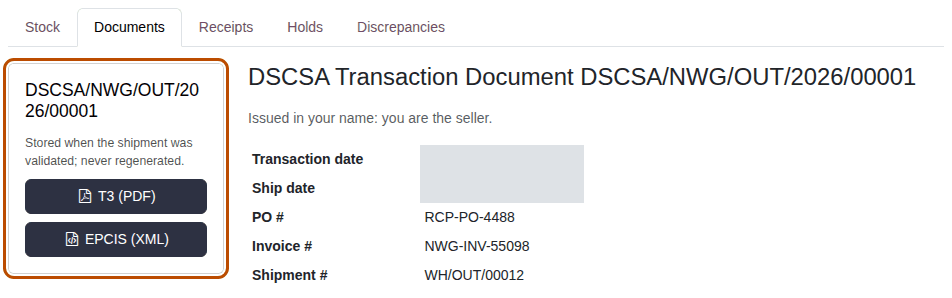
Result: the page "DSCSA Transaction Document DOCUMENT-NUMBER" with a line that says your part in it ("Issued in your name: you are the seller.", "Addressed to you: you are the buyer." or "Transfer of ownership in place: you are the buyer."), the dates, PO #, Invoice # and Shipment #; the Seller, Buyer, Ship From and Ship To with their GLN (Global Location Number, the number that identifies a company or a site) and licenses; the Products with NDC, lot, expiry and quantity; the Transaction Statement; and the Transaction History. Select "N serial number(s)" under Serial numbers to list the serial numbers.
-
Select T3 (PDF) to download the report, or EPCIS (XML) to download the data file.
Result: your browser downloads the file, for example
T3-DSCSA-NWG-OUT-2026-00001.pdforEPCIS-DSCSA-NWG-OUT-2026-00001.xml.
Result: you have the document's files, exactly as your 3PL stored them when the shipment left: each download gives the same file. The T3 (PDF) and EPCIS (XML) links in the list download the same files without opening the document.
Your own purchases from your 3PL, if you also buy from it, are not on this page: they are on the DSCSA Documents card of My account, which shows once there is one.
Known issue (PF-A09-11, PF-A09-07): a document "Received for you" offers no file: its Files column is empty and its page says "No stored file.", although your 3PL keeps your supplier's EPCIS file with it. Ask your 3PL for the file. There is also no button to download all your documents at once: download each file, or ask your 3PL for an export of your records.
See which of your lots and units are on hold, and why
Your 3PL holds a lot back when it must not be shipped: for example a suspect product, a recall, or goods received without the supplier's data or with differences from it. The Holds page shows the holds that concern your stock.
-
On My account, select Holds on Your Stock (or select the Holds tab).
Result: the page shows two tables.
-
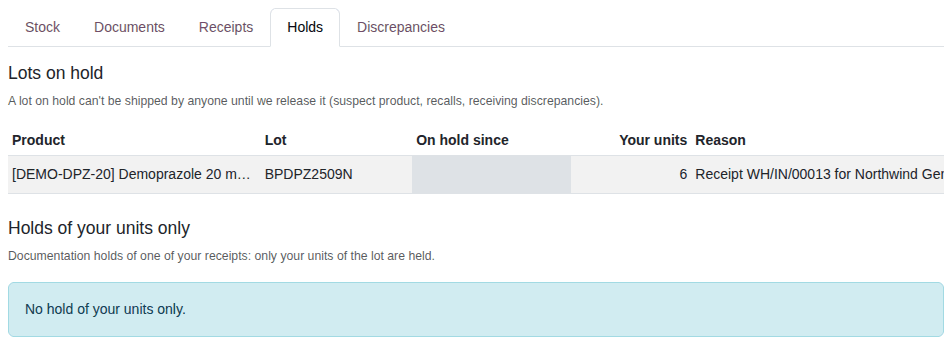
Read Lots on hold ("A lot on hold can't be shipped by anyone until we release it (suspect product, recalls, receiving discrepancies)."): Product, Lot, On hold since, Your units (how many of the lot's units are yours) and Reason. A lot is listed while it is on hold and you have units of it at your 3PL, even when the hold came from another company's goods in the same lot. When no lot of yours is on hold, the table says "No lot you have stock of is on hold."
-
Read Holds of your units only ("Documentation holds of one of your receipts: only your units of the lot are held."): Product, Lot, Kind, Receipt, Status (On hold, or Released with its date) and Reason, with "Released: …" once your 3PL releases the hold. Your 3PL uses these holds only if it holds back just your units when your supplier's data is missing; otherwise the table says "No hold of your units only."
Result: you know which lots and units of yours can't be shipped, since when, and the reason your 3PL recorded. Only your 3PL can release a hold. When your supplier's data is what is missing, send it (see the second handout); for any other hold, ask your 3PL. Your 3PL may also send you hold and release notices by email; they are not on the portal.
Known issue (PF-W24-01, PF-A09-10, PF-W18-01, PF-W24-02): the Reason column shows only the start of a long reason, with no way to read the rest on the page; ask your 3PL, or read its hold notice. The reason is the text your 3PL recorded for the whole lot: it may name a receipt that isn't yours, another company that recalled the lot, or ask for supplier data that has already arrived.
Follow the receiving discrepancies on your receipts
A receiving discrepancy is a difference your 3PL found between your supplier's data and the goods that arrived for you: a unit missing or extra, a wrong lot, a serial number already recorded, or the supplier's data not received yet. Your 3PL resolves them; the page lets you follow them.
-
On My account, select Receiving Discrepancies (or select the Discrepancies tab).
Result: the open discrepancies of your receipts, with Reference, Type, Status, Receipt, Product / lot / serial (with a description), Supplier file says, Found and Detected. When none is open, the page says "No open discrepancy on your receipts."
-
Read the Type:
Type What your 3PL found Supplier Data Pending the goods arrived before your supplier's transaction information and statement; the lot is held until they arrive Missing the supplier's file lists a unit that didn't arrive Extra a unit arrived that the supplier's file doesn't list Wrong Lot, Wrong Product, Wrong Expiry the unit arrived with another lot, product or expiry than the file says Duplicate Serial the file lists a serial number already recorded at your 3PL Transaction Statement Missing the supplier's file doesn't affirm the transaction statement; the lot is held until your 3PL records where the statement was obtained Title Not Held the file of a change of ownership in place lists a unit that your 3PL doesn't hold for the seller -
To see the resolved ones too, select Filter By and choose All (choose Open to go back).
Result: the list shows every discrepancy of your receipts, open ones first, with Status Open or Resolved. When there is none, the page says "No discrepancy on your receipts."
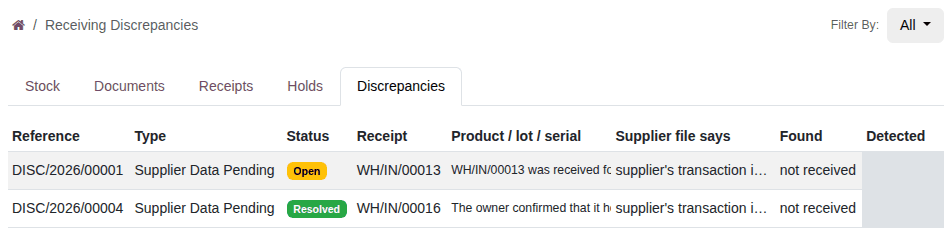
Result: you know what your 3PL found on your receipts and whether it is resolved. The page is read-only: your 3PL resolves each discrepancy, and a Supplier Data Pending one is resolved when you or your supplier send the data (see the second handout). Long descriptions are cut off at the right of their column (PF-W24-01): ask your 3PL for the whole text.
If something doesn't work
- You forgot your password: select Reset Password on the sign-in page. If you receive no email, ask your 3PL to send you a new invitation.
- The invitation link opens a page that says "Invalid signup token": the link was already used to set your password, or it has expired. Sign in with your email and password (see "Sign in later"), or select Reset Password on the sign-in page. If neither works, ask your 3PL to send you a new invitation.
- My account shows none of the owner cards: your 3PL holds nothing of yours yet, or your access doesn't include the owner portal. Go
to
PORTAL-ADDRESS/my/dscsa/owner. If that page says "Error 404", ask your 3PL to give you access to its owner portal. - A page says "Error 404" and "We couldn't find the page you're looking for!": you opened a link to a record that isn't yours (for example a link someone else sent you), the link was cut off, or your access to the owner portal has ended. Open the page from My account instead. If every owner page says so, ask your 3PL.
- A plain page says "Not Found" and "The requested URL was not found on the server. If you entered the URL manually please check your spelling and try again.": you opened a file link (a T3 report or an EPCIS file) of a document that isn't yours, or of a file the document doesn't have. Nothing is downloaded. Open the document from Documents and use its download buttons.
- A sign-in page opens instead of the owner page: you are signed out. Sign in, and the page opens.
- A document you expect isn't in the list: your 3PL lists a document once it is final: when the shipment has left, or when the goods and the supplier's data have both been received. If the document of a shipment that has left is missing, ask your 3PL.
- Your stock on the portal doesn't match your own records: the page shows what your 3PL's warehouse records now. Ask your 3PL.