Follow up and close an investigation
Odoo Enterprise: Quality app For: Compliance manager, Warehouse staff Checked on 18.0.0.2.0, 18.0.1.0.0
After the first notification, send FDA a follow-up when there is more to report, or ask FDA to terminate the notification when it is no longer needed; then close the investigation when the case is over. The software records the dates and prints the right type of report; it doesn't contact FDA. Background: the modules follow the reading that terminating a notification requires FDA's response first, in about 10 business days (FD&C Act § 582(c)(4); FDA suspect-product guidance (June 2021); Form FDA 3911; see Compliance background).
File a follow-up, or request the termination of a notification
Use the same investigation for every later Form FDA 3911 about the case. Type of Report (item 1) follows the investigation: Initial notification until FDA gives an incident number, then Follow-up notification, then Request for termination once a termination is requested.
Your procedure decides when a follow-up is sent and when to ask FDA to terminate a notification.
Who: Rx Tracking User or Manager
Requires: Odoo Enterprise with the Quality app, and Rx Tracking (DSCSA) - Suspect Product Investigations.
Before you start:
- The initial notification is recorded: FDA Notified On is set. See Record the notifications to FDA and to the trading partners.
File a follow-up
-
Go to Inventory ‣ Rx Tracking ‣ Suspect Investigations and open the investigation, for example
QA00009. -
On the DSCSA Investigation tab, check that FDA Incident Number holds the number from FDA's receipt; enter it if not.
Result: on the Form FDA 3911 tab, Type of Report is Follow-up notification.
-
On the Form FDA 3911 tab, update the items that changed, for example Quantity (Number and Unit) or Description of Event/Issue.
-
Select the ☁ (Save manually) icon.
-
In the header, select Form FDA 3911.
Result: your browser downloads
Form_3911_QA000NN.pdf. It ticks ☒ Follow-up notification, and item 2 shows the incident number.
Result: a follow-up data sheet to submit to FDA. Records: the investigation with the updated items and the incident number (item 2); changes to the tracked fields are logged in the chatter.
Request the termination of a notification
-
Go to Inventory ‣ Rx Tracking ‣ Suspect Investigations and open the investigation.
-
On the DSCSA Investigation tab, in Termination Requested On (group Termination), enter the day you send the request.
Result: on the Form FDA 3911 tab, Type of Report changes to Request for termination, and Why the Notification Is No Longer Necessary appears.
-
On the Form FDA 3911 tab, in Why the Notification Is No Longer Necessary (item 19), enter why the notification is no longer needed and the corrective actions taken, for example
The counterfeit units were destroyed under witness; no unit of the lot remains in distribution.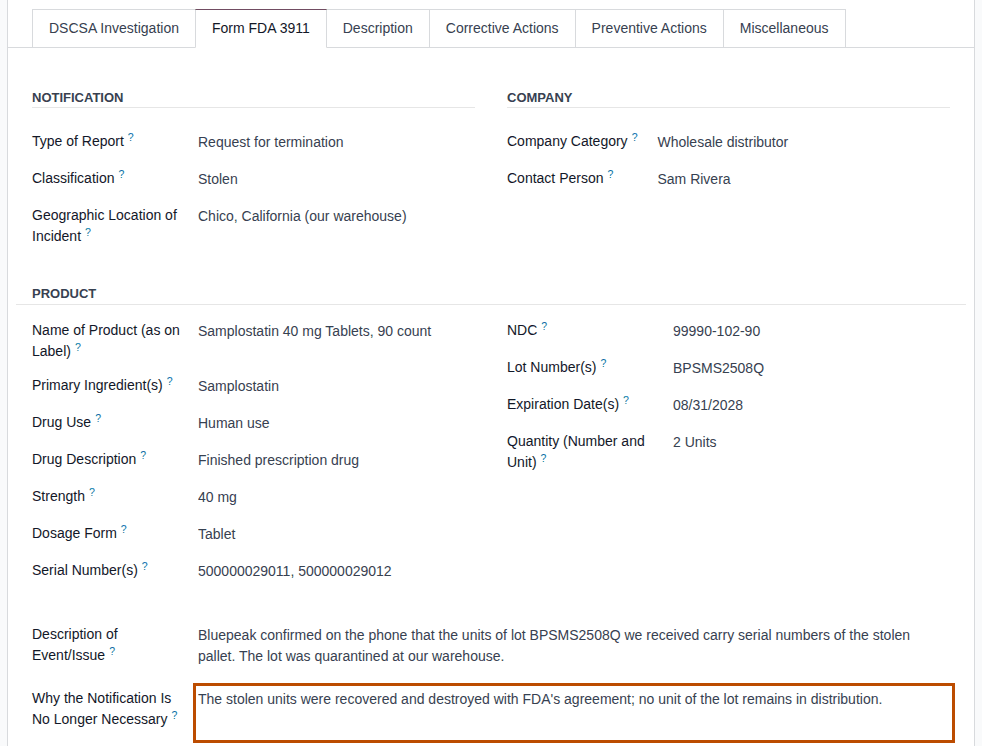
-
Select the ☁ (Save manually) icon.
-
In the header, select Form FDA 3911, and submit the data sheet to FDA.
Result: the PDF ticks ☒ Request for termination, and item 19 holds your text.
-
When FDA agrees, open the investigation again, and on the DSCSA Investigation tab enter the day in Termination Approved On.
-
Select the ☁ (Save manually) icon.
Result: the investigation records the request and FDA's approval. Records: the investigation with Termination Requested On, Termination Approved On and item 19; the chatter logs both dates.
Variants
- Type of Report by hand: select another value in Type of Report if the computed one doesn't fit. It is computed again when FDA Incident Number or Termination Requested On changes.
- FDA declines the termination: leave Termination Approved On empty; the investigation stays as it is.
If it doesn't work
- A dialog "Oh snap!" says "INVESTIGATION: a termination can only be requested after FDA was notified.": FDA Notified On is empty. Select Stay here, then record the initial notification first. See Error: "… a termination can only be requested after FDA was notified.".
- A dialog "Oh snap!" says "INVESTIGATION: FDA can only approve a termination on or after the day it was requested.": Termination Requested On is empty, or Termination Approved On is earlier than it. Select Stay here and correct the date. See Error: "… FDA can only approve a termination on or after the day it was requested.".
- Why the Notification Is No Longer Necessary isn't shown, or the data sheet ticks the wrong type: see Type of Report is wrong, or item 19 isn't shown.
Known issue (PF-A11-11): nothing reminds anyone of a termination request FDA hasn't answered, and the list has no column or filter for it. The field's help says FDA responds in about 10 business days. Schedule an activity on the investigation yourself (Activities in the chatter) for the day you expect the answer.
Next: Close an investigation
Close an investigation
Close the investigation when the case is over: a suspect product was cleared, or an illegitimate product was disposed of and its notifications recorded (and, if requested, terminated). Closing moves the investigation to Odoo's Solved stage; it doesn't release the lot or check the notifications.
Your procedure decides when a case is closed and what happens to the units; the software records the closing date.
Who: Rx Tracking User or Manager
Requires: Odoo Enterprise with the Quality app, and Rx Tracking (DSCSA) - Suspect Product Investigations.
Before you start:
- What happens to the units is decided and done, for example Scrap DSCSA units, naming each unit's serial or Send a non-saleable return to the supplier; or, for a cleared product, Release the lot from its investigation.
- For an illegitimate product: the notifications are recorded. See Record the notifications to FDA and to the trading partners.
-
Go to Inventory ‣ Rx Tracking ‣ Suspect Investigations and open the investigation, for example
QA00009. -
Optionally, record what was done on the Corrective Actions and Preventive Actions tabs and in Root Cause (Odoo's fields).
-
In the stage bar at the top right, select ..., then Solved.
Result: the stage bar shows Solved, the chatter logs "New → Solved (Stage)", and Date Closed is set on the Miscellaneous tab. The change is saved at once.
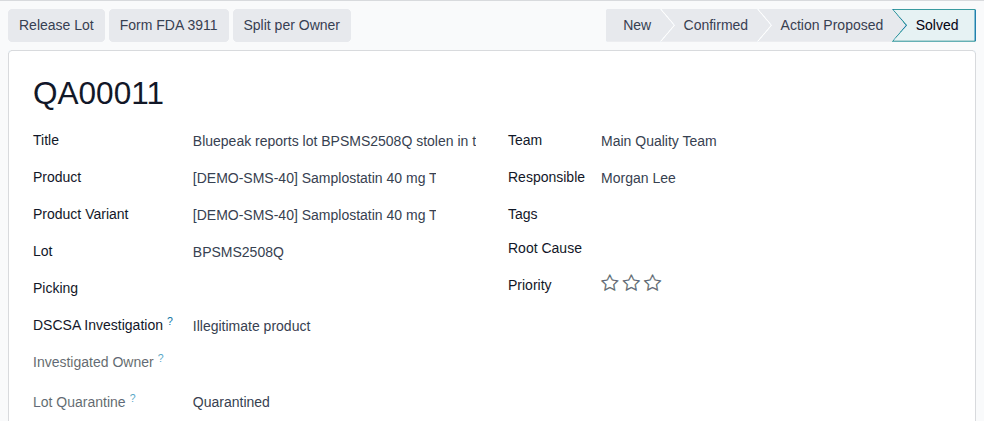
Result: the investigation is closed. Records: the investigation in the stage Solved with its Date Closed. It leaves the default In Progress list (remove that facet to see it). What closing changes and doesn't change:
- the lot keeps its quarantine state: Lot Quarantine still says Quarantined until a manager releases the lot (Release the lot from its investigation);
- the next quarantine of the lot opens a new investigation, because the lot has no open one any more;
- an illegitimate product whose notifications aren't recorded stays overdue (red banner, Notify FDA (Form 3911) activity) after it is closed, and nothing warns you when you close it; the default In Progress filter then hides it from the list (PF-W27-03);
- with the 3PL add-on, Split per Owner refuses a closed investigation.
Variants
- Other stages: New, Confirmed and Action Proposed are Odoo's stages of an open case; use them as your procedure says.
If it doesn't work
- The investigation is still red after closing: its notifications aren't recorded. See A closed investigation is still overdue.
- The lot is still Quarantined: closing doesn't release it. See The investigation stays open after the lot is released for the other direction, and release the lot with QA-08.
Known issue (PF-A11-02): a closed investigation isn't protected: an Rx Tracking Manager (and any Quality Administrator) can delete it from the ⚙ (Actions) menu, no retention export includes investigations, and legal hold doesn't cover them. The modules follow the reading that investigation and disposition records are kept at least six years after the investigation concludes (FD&C Act § 582, record-keeping provisions; see Compliance background). Your procedure decides how investigation records are kept; don't delete investigations, and attach the submitted data sheets and FDA's replies to the chatter.