Handle illegitimate product and Form FDA 3911
Odoo Enterprise: Quality app For: Compliance manager, Warehouse staff Checked on 18.0.0.2.0, 18.0.1.0.0
Once your business determines that a product under investigation is illegitimate, record the determination on the investigation, list the trading partners to notify, prepare the Form FDA 3911 data, and record when FDA and the partners were notified. The software keeps the dates, shows the 24-hour deadline and schedules a reminder; it doesn't send anything to FDA or to your trading partners. Background: the modules follow the reading that FDA and all immediate trading partners that may have received an illegitimate product are notified within 24 hours of the determination, with Form FDA 3911, through the CDER NextGen Portal or by email (FD&C Act § 582(c)(4); FDA suspect-product guidance (June 2021); Form FDA 3911; see Compliance background). How an investigation is opened is on Investigate suspect product.
When the investigated units belong to a 3PL owner, the owner is the filer, and the software doesn't tell the owner that its investigation was determined illegitimate (known issue PF-A11-03). See Prepare an owner's trading partners and Form FDA 3911, and hand them to the owner.
Record that the product is illegitimate and start the 24-hour clock
Change the investigation's type to Illegitimate product when there is credible evidence that the product is counterfeit, diverted, stolen, intentionally adulterated, unfit for distribution or the subject of a fraudulent transaction. From that moment the investigation has a notification deadline 24 hours after the determination.
Your procedure decides who may determine that a product is illegitimate and on what evidence; the software requires an Rx Tracking right to change the type.
Who: Rx Tracking User or Manager
Requires: Odoo Enterprise with the Quality app, and Rx Tracking (DSCSA) - Suspect Product Investigations.
Before you start:
- The investigation exists, with its Product and Lot. See Open a suspect-product investigation for a lot, or Follow the investigation a lot quarantine opens automatically.
- You know when the determination was made (date and time).
-
Go to Inventory ‣ Rx Tracking ‣ Suspect Investigations and open the investigation, for example
QA00008(Riverside reports a bottle with a broken tamper seal, lotBPSMS2509K). -
In DSCSA Investigation, select Illegitimate product.
Result: on the DSCSA Investigation tab, Determined Illegitimate On appears, filled with the current date and time, and Notification Deadline shows 24 hours later. A yellow banner above the form says "Illegitimate product: notify FDA (Form 3911) and the trading partners by DEADLINE."
-
If the determination was made earlier, enter its date and time in Determined Illegitimate On, for example
09/27/2026 16:30:00.Result: Notification Deadline and the banner move to 24 hours after the time you entered.
-
Select the Form FDA 3911 tab, and in Classification select the reason, for example Intentional adulteration.
-
Check Responsible (next to Team): the reminder goes to this user. Select another user if someone else records the notifications.
-
Select the ☁ (Save manually) icon.
Result: the chatter logs the changes (DSCSA Investigation, Determined Illegitimate On, Classification) and shows a planned activity for the Responsible: "“Notify FDA and trading partners within 24 hours”", with the note "Submit Form FDA 3911 and notify the immediate trading partners by DEADLINE (UTC)." It is due on the deadline's day.
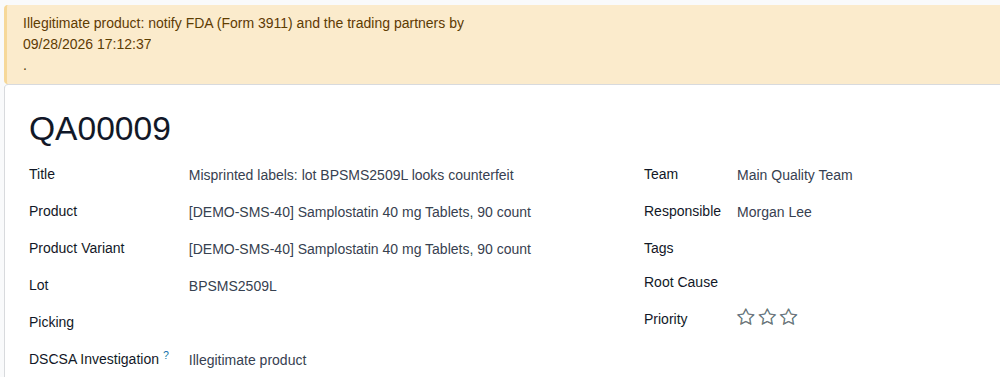
Result: the investigation is an illegitimate-product investigation with a running deadline. Records: the investigation QA000NN with
Determined Illegitimate On (Form 3911 item 5), Notification Deadline and Classification (item 6); one Notify FDA (Form 3911)
activity for the Responsible, also counted in the ⏰ (Activities) menu of the top bar. The lot's quarantine state doesn't change:
to hold it, see Quarantine the lot from its investigation.
Variants
- A new investigation opened as illegitimate: select Illegitimate product before the first save. The same fields, banner and activity apply.
- The determination time changes later: enter the new time in Determined Illegitimate On and save. The deadline, the banner and the activity's due date follow it (see the known issue below). A determination moved more than 24 hours back makes the investigation overdue at once (red banner).
- Another Responsible: select the user in Responsible and save. The open activity is reassigned to that user.
- Back to Suspect product (the product was wrongly determined): select Suspect product and save. The deadline, the banner and the open activity disappear, and Determined Illegitimate On is hidden. The date is kept: selecting Illegitimate product again brings back that determination and its deadline.
If it doesn't work
- A dialog "Oh snap!" says "INVESTIGATION: the determination date can't be in the future.": the date is more than 5 minutes ahead of now. Select Stay here and correct it. See Error: "… the determination date can't be in the future.".
- "Invalid fields: Determined Illegitimate On": the date is empty; it is required for an illegitimate product. Enter it and save again. See Error: "Invalid fields: Determined Illegitimate On".
- The DSCSA Investigation field isn't shown: you have no Rx Tracking right, or you opened the alert in the Quality app without one. See The DSCSA fields and tabs aren't shown.
Known issue (PF-A11-07): after Determined Illegitimate On changes, the activity's due date follows, but its note still names the first deadline, and the note gives it in UTC while the form shows your local time. Go by Notification Deadline on the form.
Next: Find the trading partners to notify
Find the trading partners to notify
List the trading partners who sold you the lot or received it from you, so that you know whom to notify and the deadline takes them into account. Find Trading Partners reads the lot's done transfers; you can add or remove partners by hand.
Your procedure decides which trading partners are notified; the software lists the companies of the lot's done receipts and deliveries.
Run Find Trading Partners before you record FDA Notified On. While the list is empty, the FDA date alone counts as "notifications done" (known issue PF-A11-06).
Who: Rx Tracking User or Manager
Requires: Odoo Enterprise with the Quality app, and Rx Tracking (DSCSA) - Suspect Product Investigations.
Before you start:
- The investigation has a Lot. See Open a suspect-product investigation for a lot.
-
Go to Inventory ‣ Rx Tracking ‣ Suspect Investigations and open the investigation, for example
QA00009(misprinted labels, lotBPSMS2509L). -
On the DSCSA Investigation tab, under Trading partners to notify, select Find Trading Partners.
Result: the investigation is saved, and Trading Partners to Notify lists the companies, for example Bluepeak Pharmaceuticals Inc. (the supplier the lot was received from) and Riverside Community Pharmacy (a customer it was shipped to).

-
To remove a partner, select the × on its tag; to add one, select the field and type the company's name, then select it in the list.
-
If you changed the list, select the ☁ (Save manually) icon.
Result: Trading Partners to Notify lists the partners to notify. Records: the investigation. From now on the deadline counts as met only when Trading Partners Notified On is recorded too (ILL-04).
What Find Trading Partners counts:
- the company (not the contact person) of each done receipt of the lot from a supplier and each done delivery of the lot to a customer;
- not open deliveries, customer returns or returns to the supplier;
- running it again adds only new partners: it never removes one and never adds a duplicate.
If it doesn't work
- Find Trading Partners isn't shown: the investigation has no Lot. Set the lot first. See Find Trading Partners adds nobody, or isn't shown.
- Nobody is added: the lot has no done receipt from a supplier or delivery to a customer (for example opening stock). Add the partners by hand. See the same entry.
Next: Complete and print the Form FDA 3911 data sheet
Complete and print the Form FDA 3911 data sheet
Check and complete the items of Form FDA 3911 on the investigation, then print them as a data sheet laid out in the form's order and numbering. Someone in your business keys the data into FDA's portal or attaches the sheet to an email; the software submits nothing.
Your procedure decides who submits the notification to FDA, and how.
Who: Rx Tracking User or Manager
Requires: Odoo Enterprise with the Quality app, and Rx Tracking (DSCSA) - Suspect Product Investigations.
Before you start:
- The company's name, address and D-U-N-S number are set (items 21 and 23). See Set up investigations: D-U-N-S number, automatic investigations, Form 3911 data.
- The product is recorded as illegitimate. See Record that the product is illegitimate and start the 24-hour clock.
-
Go to Inventory ‣ Rx Tracking ‣ Suspect Investigations and open the investigation, for example
QA00009. -
Select the Form FDA 3911 tab.
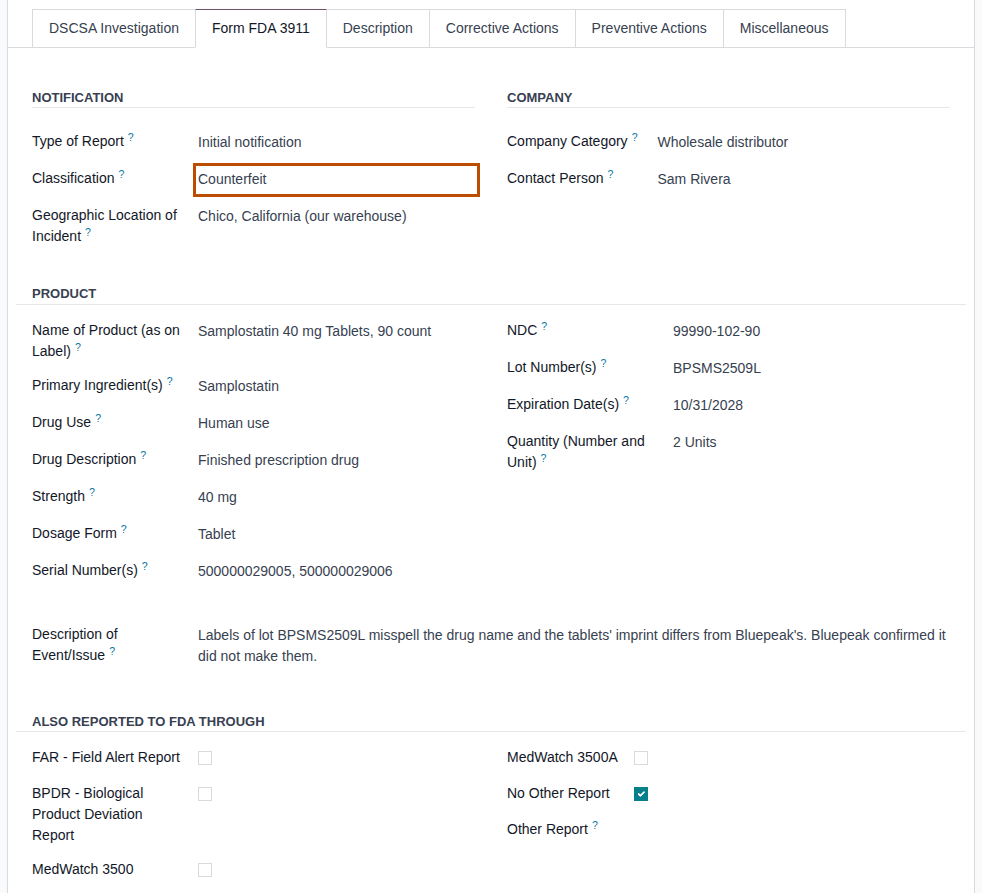
Result: the items taken from the product, the lot and your company are already filled in (see the Form 3911 item map).
-
Fill in the items the software can't know:
- Classification (item 6), if not done yet;
- Geographic Location of Incident (item 3): where the product was when it was identified, for example
Chico, California (our warehouse); - Primary Ingredient(s) (item 8);
- Description of Event/Issue (item 18): when, where and how the product was found, and who confirmed it;
- under Also reported to FDA through (item 20): the other reports sent to FDA about the same event, or No Other Report; any other report in Other Report.
-
Check the prefilled items, and correct them if they don't match the product in hand: Quantity (Number and Unit) and Serial Number(s) list what you hold now, not what was shipped. Contact Person (item 24) is the user who was Responsible when the investigation was created, and it doesn't follow later changes of Responsible (PF-W27-01); select the person FDA may contact.
-
Select the ☁ (Save manually) icon.
-
In the header, select Form FDA 3911.
Result: your browser downloads
Form_3911_QA000NN.pdf.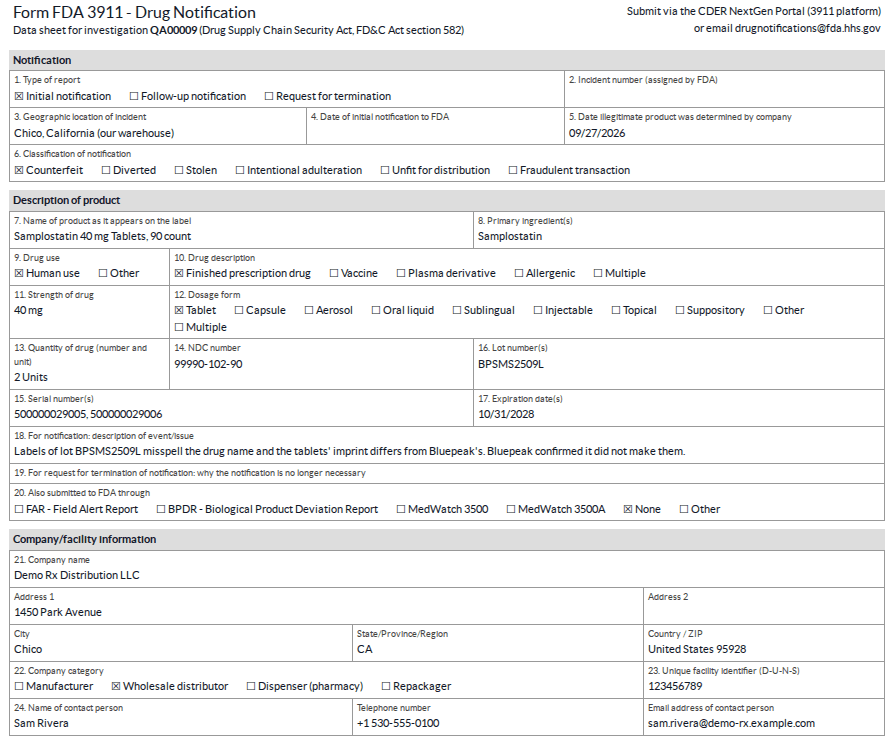
Result: a PDF data sheet, "Form FDA 3911 - Drug Notification", "Data sheet for investigation QA000NN", with the sections Notification (items 1-6), Description of product (items 7-20) and Company/facility information (items 21-24). Choices print as ☒ and ☐; dates print as MM/DD/YYYY in your time zone. Item 4 (FDA Notified On) stays blank until you record it (ILL-04); item 2 until FDA gives an incident number. The PDF isn't stored on the investigation, and a later print shows the investigation's values at that time (PF-W27-02): to keep the copy you submitted, attach it to the chatter (the 📎 icon). The sheet's header says "Submit via the CDER NextGen Portal (3911 platform) or email drugnotifications@fda.hhs.gov" (the in-app text).
If it doesn't work
- The Form FDA 3911 button isn't shown: the alert isn't a DSCSA investigation, or you have no Rx Tracking right. See The DSCSA fields and tabs aren't shown.
- Items are blank on the data sheet (item 23, item 24's phone, items 2, 3, 4, 6, 8, 18, 19, 20): they aren't set on the investigation or the company. See Items are blank on the Form FDA 3911 data sheet.
- Lot Number(s), Quantity (Number and Unit) or Serial Number(s) show another lot, or are empty (the serials also stay empty when you hold more than 200 units of the lot: known issue PF-A11-10). See Form FDA 3911 items are empty, or show another lot.
- "Form FDA 3911 is only for DSCSA investigations." (from an import or a script): see Errors when investigations are changed through an import or the API.
Next: Record the notifications to FDA and to the trading partners
Record the notifications to FDA and to the trading partners
After the notification was submitted to FDA and sent to the listed trading partners (outside the software), record when. Once both dates are recorded, the deadline counts as met: the banner goes and the reminder is marked done.
Who: Rx Tracking User or Manager
Requires: Odoo Enterprise with the Quality app, and Rx Tracking (DSCSA) - Suspect Product Investigations.
Before you start:
- Find Trading Partners was run and the list checked. See Find the trading partners to notify.
- The notification was submitted to FDA and sent to the partners.
-
Go to Inventory ‣ Rx Tracking ‣ Suspect Investigations and open the investigation, for example
QA00009. -
On the DSCSA Investigation tab, in FDA Notified On, enter when the notification was submitted to FDA.
-
In Trading Partners Notified On, enter when the listed trading partners were notified.
-
Select the ☁ (Save manually) icon.
Result: the yellow (or red) banner disappears. The chatter says "Notify FDA (Form 3911) done", with "Feedback: FDA and trading partners notified.", and logs the two dates.
-
When FDA's receipt arrives, enter its number in FDA Incident Number, and save.
Result: on the Form FDA 3911 tab, Type of Report changes to Follow-up notification.
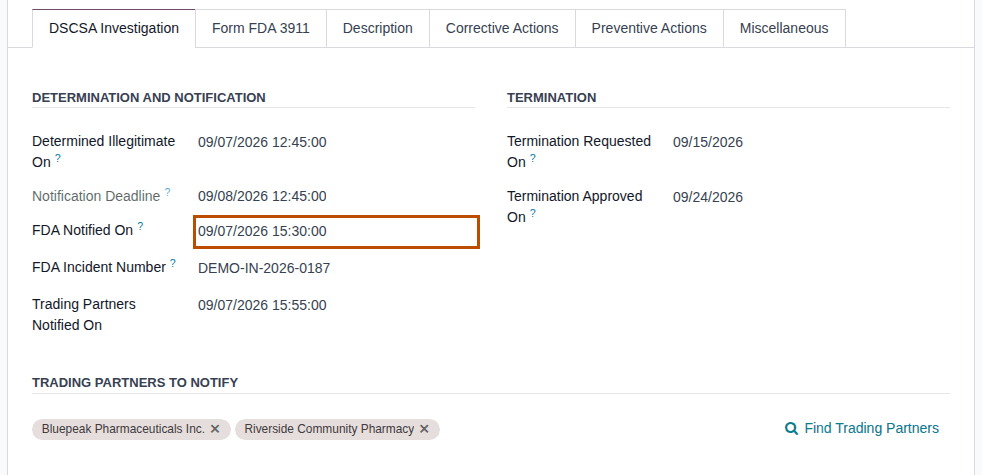
Result: the investigation records that FDA and the trading partners were notified. Records: the investigation, with FDA Notified On (Form 3911 item 4), Trading Partners Notified On, FDA Incident Number (item 2), and the Notify FDA (Form 3911) activity marked done. It leaves the Notification Overdue list. The investigation stays open: close it when the case is over (Close an investigation).
Variants
- Only FDA recorded, partners listed: the deadline isn't met. The banner stays (red after the deadline) and so does the activity, until Trading Partners Notified On is recorded.
- No trading partner listed: FDA Notified On alone meets the deadline (see the known issue below).
- A suspect product: the dates can be recorded, but no deadline or reminder applies.
- With the 3PL add-on: once FDA Notified On is saved, Investigated Owner can no longer be changed. See Change the investigated owner.
If it doesn't work
- A dialog "Oh snap!" says "INVESTIGATION: FDA Notified On is before the determination date." (or "Trading Partners Notified On is before …"): a notification can't be earlier than Determined Illegitimate On. Select Stay here and correct the date. See Error: "… is before the determination date.".
- The banner stays after you saved FDA Notified On: partners are listed and Trading Partners Notified On is empty. See The banner stays after FDA was recorded as notified.
Known issue (PF-A11-06): when Trading Partners to Notify is empty, FDA Notified On alone removes the banner and marks the activity done with "FDA and trading partners notified.", even if the lot was received from a supplier and shipped to customers. Run Find Trading Partners first (ILL-02).
Next: File a follow-up, or request the termination of a notification
Keep notifications within the 24-hour deadline
Check the open illegitimate-product investigations every day, and act on those whose deadline has passed. An investigation is overdue when its deadline has passed and FDA isn't recorded as notified, or trading partners are listed and not recorded as notified.
Your procedure decides who checks the list and how often; the software sends no email of its own about the deadline.
Who: Rx Tracking User or Manager
Requires: Odoo Enterprise with the Quality app, and Rx Tracking (DSCSA) - Suspect Product Investigations.
-
Go to Inventory ‣ Rx Tracking ‣ Suspect Investigations.
Result: overdue investigations are red rows in the list.
-
Open the search options (the ▾ at the end of the search bar) and select Notification Overdue.
Result: the list shows only the overdue investigations, for example
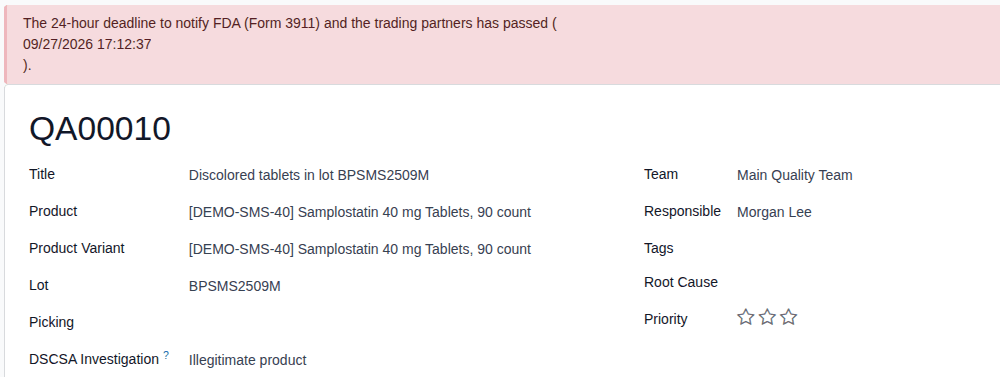
QA00010(discolored tablets, lotBPSMS2509M).
-
Open each investigation.
Result: a red banner says "The 24-hour deadline to notify FDA (Form 3911) and the trading partners has passed (DEADLINE)." and Notification Deadline is red.
-
Record the notifications that were made (ILL-04), or make them and then record them.
Result: the overdue list is empty once every overdue investigation has its notifications recorded. Nothing is changed by looking at the list. Other places that show the same deadlines:
- the activity view of Suspect Investigations (the clock icon, top right): the Notify FDA (Form 3911) column, with each activity's due date;
- the ⏰ (Activities) menu in the top bar: the Quality Alert line counts the Notify FDA (Form 3911) activities that are due today or late;
- the yellow banner of an investigation still inside its deadline.
How "overdue" is decided: the server compares the deadline with its own clock each time the list or the form is shown; no scheduled job runs, and no email is sent besides Odoo's usual activity notifications. A closed investigation (stage Solved) stays overdue until its notifications are recorded, but the default In Progress filter hides it (PF-W27-03): remove that facet to see it.
If it doesn't work
- An investigation stays red after you recorded FDA Notified On: see The banner stays after FDA was recorded as notified.
- A closed investigation is still red: see A closed investigation is still overdue.
- "Unsupported search on the notification overdue flag." (a custom filter): use the Notification Overdue filter. See Errors when investigations are changed through an import or the API.
Known issue (PF-T03e-01): both banners break over three lines: the deadline stands on a line of its own, followed by "." (yellow) or ")." (red). The text is complete; only the layout is broken.