Investigate suspect product
Odoo Enterprise: Quality app For: Administrator, Compliance manager, Warehouse staff Checked on 18.0.0.2.0, 18.0.1.0.0
Record a suspect-product case as an investigation, follow the investigations the software opens when a lot is quarantined, and hold or release the lot from the investigation. An investigation is a quality alert of Odoo's Quality app with a DSCSA Investigation type; it keeps the case, the Form FDA 3911 data and the dates in one record. Background: the modules follow the reading that suspect product is quarantined and investigated, and released if it is cleared (FD&C Act § 582(c)(4); FDA suspect-product guidance (June 2021); Form FDA 3911; see Compliance background). What happens when the product is determined illegitimate is on Handle illegitimate product and Form FDA 3911.
Find and review investigations
Look at the open cases every day, answer a question about a lot, or find the investigation that a quarantine opened.
When you hold stock for 3PL owners, the list also has an Investigated Owner column, filter and grouping. See What changes for investigations when you hold owners' stock.
Who: Rx Tracking User or Manager
Requires: Odoo Enterprise with the Quality app, and Rx Tracking (DSCSA) - Suspect Product Investigations.
-
Go to Inventory ‣ Rx Tracking ‣ Suspect Investigations.
Result: the Suspect Product Investigations list shows the investigations that aren't closed (the In Progress filter is set). Its columns are Name (the reference,
QA000NN), Title, DSCSA Investigation (Suspect product or Illegitimate product), Product Variant, Lot, Lot Quarantine, Classification, Determined Illegitimate On, Notification Deadline, FDA Notified On, Responsible and Stage. A red row is an illegitimate product whose 24-hour deadline has passed without the notifications recorded. -
To narrow the list, open the search options (the ▾ at the end of the search bar) and select a filter: Suspect, Illegitimate or Notification Overdue; or group by Stage or Responsible. Select the × on the In Progress facet to include closed investigations.
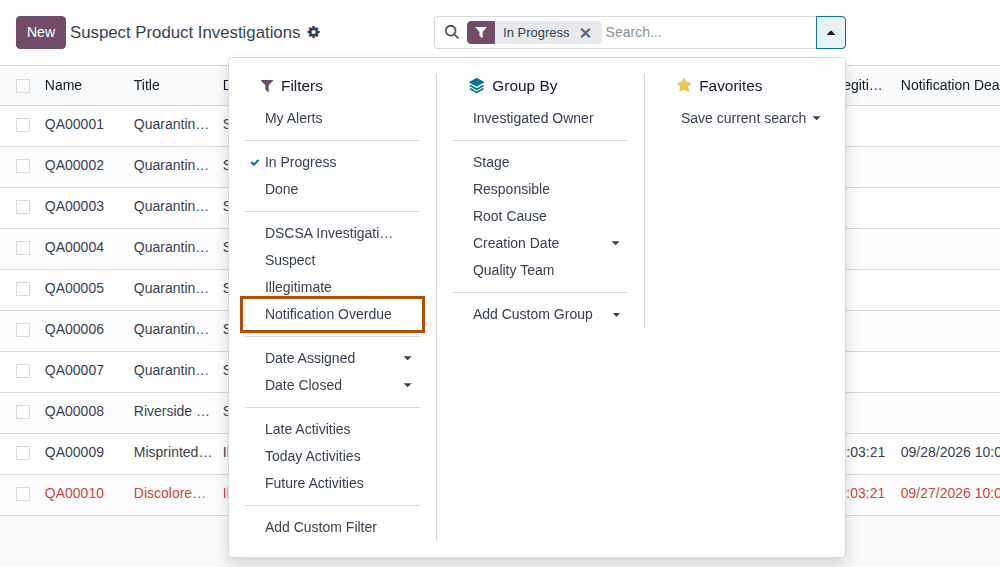
-
To see the cases by stage, select the kanban view (the icon next to the list icon, top right); for the deadline activities, select the activity view (the clock icon).
-
Open an investigation.
Result: the form shows the reference, Title, Product, Lot, DSCSA Investigation, Lot Quarantine, Team and Responsible, with the stage bar (New, Confirmed, Action Proposed, and Solved under ...) at the top right, and the tabs DSCSA Investigation, Form FDA 3911, Description, Corrective Actions, Preventive Actions and Miscellaneous.
Result: you see the open cases and their state. Nothing is changed. Other ways to the same records:
- the lot form: the Quality Alerts smart button lists the lot's quality alerts, and the chatter says "Suspect-product investigation QA000NN opened." when a quarantine opened one;
- the ⏰ (Activities) menu in the top bar: the Quality Alert line counts the Notify FDA (Form 3911) activities of illegitimate products that are due;
- Quality ‣ Quality Control ‣ Quality Alerts: every quality alert, investigations included, as cards by stage; the DSCSA Investigations filter keeps only investigations. That list has no DSCSA columns.
When nothing matches, the list says "Open a suspect product investigation" and "Quarantining a lot opens one automatically. Once a product is determined illegitimate, FDA (Form 3911) and the immediate trading partners must be notified within 24 hours." (the in-app text; the software records the notifications, it doesn't send them).
If it doesn't work
- Suspect Investigations isn't in the menu: you have no Rx Tracking right. See Give staff access to investigations.
- An investigation you expect isn't listed: it is closed (remove the In Progress facet), or it belongs to another company (switch company at the top right).
Open a suspect-product investigation for a lot
Open an investigation when something about a lot looks wrong: a partner's or FDA's notice, packaging or label anomalies, a lot or expiry that doesn't match the paperwork, a customer complaint, a failed receiving check. The investigation copies the product's and the lot's data into the Form FDA 3911 items at once.
Your procedure decides what counts as a reason to suspect a product and who opens the investigation; the software requires an Rx Tracking right to set the DSCSA Investigation fields.
For a lot that holds units you keep for a 3PL owner, see Open an investigation of an owner's units.
Who: Rx Tracking User or Manager
Requires: Odoo Enterprise with the Quality app, and Rx Tracking (DSCSA) - Suspect Product Investigations.
Before you start:
- The product is in Odoo, and the lot was received (or recorded as opening stock).
- The company's Form FDA 3911 data is set up. See Set up investigations: D-U-N-S number, automatic investigations, Form 3911 data.
-
Go to Inventory ‣ Rx Tracking ‣ Suspect Investigations and select New.
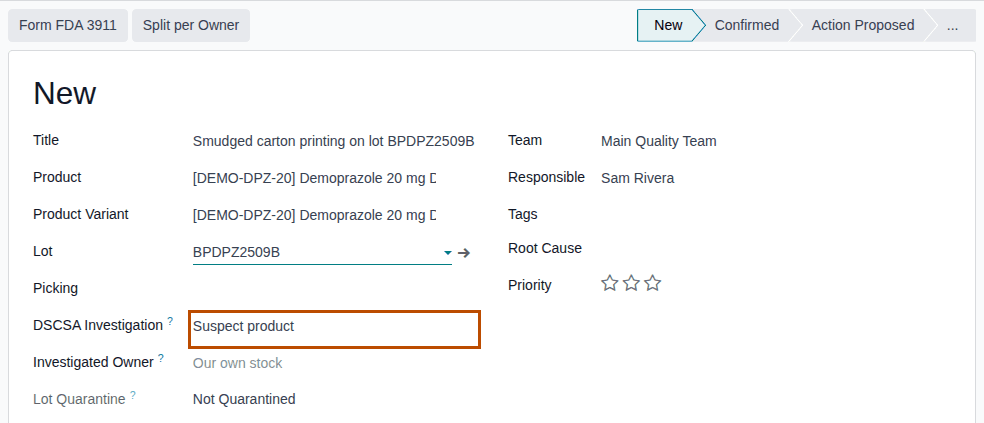
Result: a new investigation opens with DSCSA Investigation set to Suspect product, Team set to Main Quality Team and you as Responsible.
-
In Title, enter what was found, for example
Smudged carton printing on lot BPDPZ2509B found at a shelf check. -
In Product, select the product, for example [DEMO-DPZ-20] Demoprazole 20 mg Delayed-Release Capsules, 30 count. Select the product first: the Lot list only offers the lots of the selected product.
Result: Product Variant shows the same product.
-
In Lot, select the lot, for example
BPDPZ2509B.Result: Lot Quarantine shows the lot's state, for example Not Quarantined, and the Form FDA 3911 tab is filled in from the product and the lot.
-
Select the Description tab and describe the case: who reported what, when, and where the units are.
-
Select the ☁ (Save manually) icon.
Result: the investigation gets its reference (
QA000NN), and the chatter says "Quality Alert created". The header shows Form FDA 3911, and Quarantine Lot for an Rx Tracking Manager.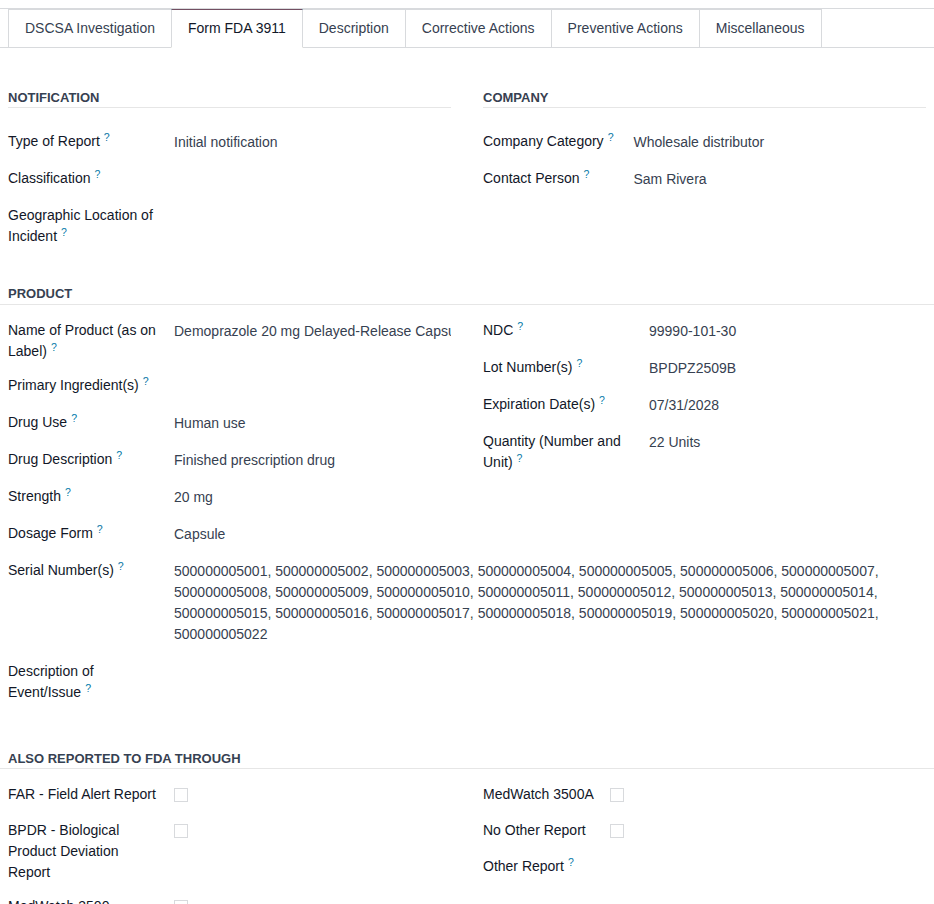
Result: the investigation is open in the stage New. Records: the investigation QA000NN. Its Form FDA 3911 tab is filled in:
Type of Report Initial notification; Company Category from your company's DSCSA role (Wholesale distributor for a
wholesaler); Contact Person the Responsible; Name of Product (as on Label), Strength, Dosage Form and NDC from the
product; Drug Use Human use and Drug Description Finished prescription drug; Lot Number(s), Expiration Date(s),
Quantity (Number and Unit) (what you hold now, for example 22 Units) and Serial Number(s) (the serials of the lot's units in your
custody) from the lot. The lot is not quarantined: to stop it being reserved or shipped, see
Quarantine the lot from its investigation.
Variants
- Without a lot: leave Lot empty when only the product is known. Only the product items are filled in, and Quarantine Lot and Find Trading Partners are hidden until you set a lot.
- The lot was fully shipped: Quantity (Number and Unit) and Serial Number(s) stay empty, because they list what you hold now. Fill them in by hand from the shipments.
- From another quality alert (for example the Quality Alert button of a receipt after a failed check, or an alert of Quality ‣ Quality Control ‣ Quality Alerts): open the alert, select Suspect product in DSCSA Investigation, then on the Form FDA 3911 tab select Initial notification in Type of Report, which stays empty otherwise (known issue PF-A11-05 below), and save. See Use Quality Control checks alongside DSCSA operations.
- A product that isn't a DSCSA product: the investigation is accepted, but its lot can't be quarantined.
If it doesn't work
- The Lot list offers only Create "…": no product is selected, or the lot belongs to another product. Select the Product first. Don't select Create: it creates a new, empty lot.
- The DSCSA Investigation field and the two DSCSA tabs aren't shown: you opened the alert without an Rx Tracking right (for example in the Quality app). See Give staff access to investigations.
- "No quality team found for this company. Please go to configuration and create one first.": no Quality team can be used by your company. See Error: "No quality team found for this company.".
Known issue (PF-A11-04): changing the Lot or Product of a saved investigation fills only the Form FDA 3911 items that are empty: the previous lot's number, expiry, quantity and serials stay. After changing the lot, correct Lot Number(s), Expiration Date(s), Quantity (Number and Unit) and Serial Number(s) by hand, or clear them, save, and select the lot again.
Known issue (PF-A11-10): when the lot has more than 200 units in your custody, Serial Number(s) stays empty without a message. List the serials from the lot's Packages smart button, and attach the list to the investigation.
Known issue (PF-A11-05): Type of Report is filled in only when the investigation starts with New in Suspect Investigations (steps 1–6). On a quality alert whose DSCSA Investigation is chosen after the form opened, new or already saved (the variant "From another quality alert"), it stays empty while the other items are filled in. Select Initial notification by hand. The printed data sheet ticks Initial notification even while the field is empty.
Next: Quarantine the lot from its investigation
Follow the investigation a lot quarantine opens automatically
While Open an investigation on quarantine is selected (the default), every lot of a DSCSA product that enters quarantine gets a Suspect product investigation, unless it already has an open one. That includes a manager's Quarantine on the lot, the holds the software places when a receipt with a discrepancy or without a Transaction Statement is validated, and, with the 3PL add-on, a recall that holds the lots and the whole-lot holds of owner receipts. Follow each one: give it an owner, say what happened, and decide the outcome.
For a lot that holds units of 3PL owners, the investigation gets the owner, or one investigation is opened per owner. See Follow the automatic investigations of a lot that holds owners' units.
Who: Rx Tracking User or Manager (anyone whose action quarantines a lot opens it, the warehouse user who validates a receipt too)
Requires: Odoo Enterprise with the Quality app, and Rx Tracking (DSCSA) - Suspect Product Investigations.
Before you start:
- Open an investigation on quarantine is selected. See Set up investigations: D-U-N-S number, automatic investigations, Form 3911 data.
- A lot was quarantined, for example
BPFMY2509D(Fictimycin, held after a temperature excursion). See Quarantine a lot so it can't be reserved or shipped.
-
Go to Inventory ‣ Rx Tracking ‣ Quarantined Lots and open the lot.
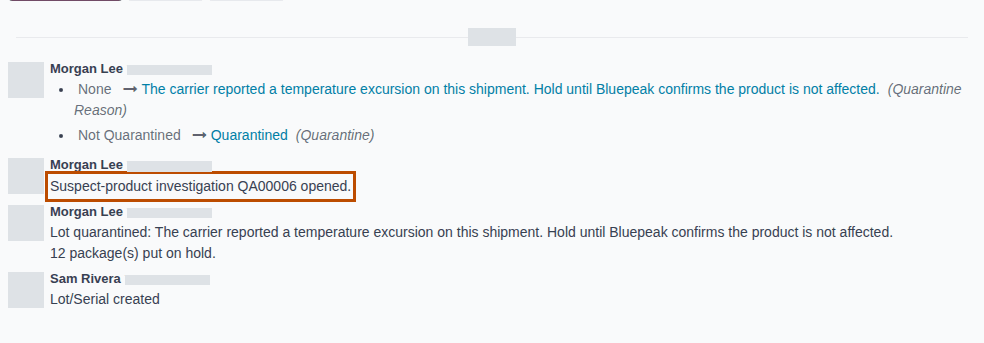
Result: the chatter says "Suspect-product investigation QA000NN opened." next to "Lot quarantined: REASON".
-
Go to Inventory ‣ Rx Tracking ‣ Suspect Investigations and open the investigation named in the chatter.
Result: its Title is "Quarantine of lot LOT", its Description tab holds the lot's quarantine reason, Responsible is the user whose action quarantined the lot, and the Form FDA 3911 tab is filled in as for an investigation opened by hand.
-
Change Title to say what the case is about, set the Responsible who follows it, and complete the Description tab.
-
Select the ☁ (Save manually) icon.
Result: the investigation has an owner and a description. Records: the investigation QA000NN (created by the quarantine), and the
lot's chatter line. Then decide:
- the product is cleared: Release the lot from its investigation, then Close an investigation;
- the product is illegitimate: Record that the product is illegitimate and start the 24-hour clock.
When a quarantine opens no new investigation
| Situation | What happens |
|---|---|
| The lot already has an open investigation (any stage except Solved) | Nothing new opens. Each open investigation of the lot gets "Lot LOT quarantined: REASON" in its chatter |
| The lot's investigations are all closed (Solved) | A new investigation opens |
| The quarantine comes from an investigation's Quarantine Lot | Nothing new opens: the lot is linked to that investigation |
| Open an investigation on quarantine is cleared | Nothing opens; investigations opened by hand still work |
| The lot was quarantined before the add-on was installed, or a reason is added while it is already quarantined | Nothing opens |
If it doesn't work
- "No quality team found for this company. Please go to configuration and create one first." when a lot is quarantined, or when a receipt is validated: the quarantine itself fails because no Quality team can be used by the company. See Error: "No quality team found for this company.".
Known issue (PF-A02-02): a receiving discrepancy or a missing Transaction Statement also opens a Suspect product investigation,
for example Quarantine of lot BPDPZ2509M after 23 of 24 units arrived. When the supplier's statement is recorded later, the lot is
released by itself, but the investigation stays open. Close it by hand when the documentation gap is the only issue
(Close an investigation).
Quarantine the lot from its investigation
Hold the investigated lot so that it can't be reserved or shipped while you investigate. The lot's reason names the investigation, and no second investigation is opened for it.
Your procedure decides when a suspect lot is quarantined; the software requires the Rx Tracking Manager right.
With the 3PL add-on, this holds the whole lot, owners' units included, and sends each owner a notice. See Quarantine and release, from an investigation, a lot that holds owners' units.
Who: Rx Tracking Manager
Requires: Odoo Enterprise with the Quality app, and Rx Tracking (DSCSA) - Suspect Product Investigations.
Before you start:
- The investigation has a Lot of a DSCSA product, and a Title: the title becomes part of the lot's quarantine reason. See Open a suspect-product investigation for a lot.
- The lot is Not Quarantined or Released.
-
Go to Inventory ‣ Rx Tracking ‣ Suspect Investigations and open the investigation, for example
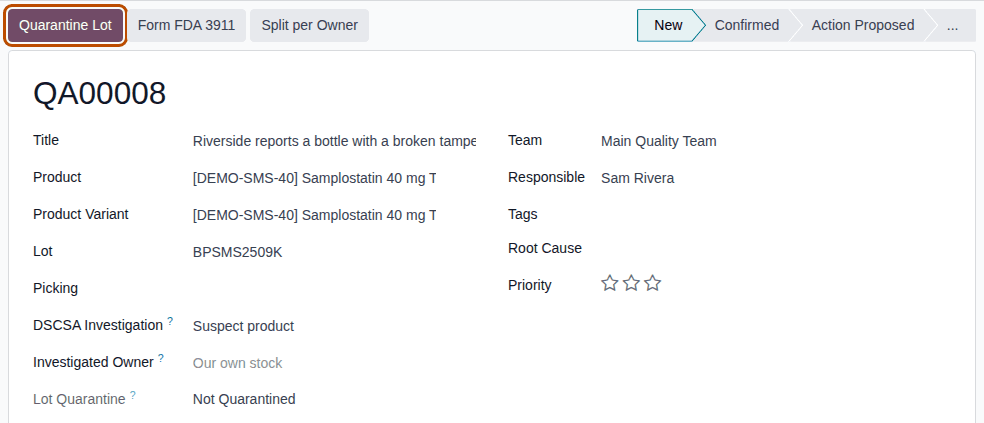
QA00008(Riverside reports a bottle with a broken tamper seal, lotBPSMS2509K).Result: the header shows Quarantine Lot, and Lot Quarantine is Not Quarantined.
-
Select Quarantine Lot.
Result: no dialog opens. Lot Quarantine is Quarantined, Release Lot replaces Quarantine Lot, and the chatter says "Lot BPSMS2509K quarantined."
Result: the lot is on hold with the effects of any quarantine: its reservations on open operations are released, and its packages in stock are Quarantined (see Quarantine a lot so it can't be reserved or shipped). Records: the lot, with the reason "INVESTIGATION (Suspect product): TITLE" (for example "QA00008 (Suspect product): Riverside reports a bottle with a broken tamper seal") and the chatter lines "Lot quarantined: …" and "2 package(s) put on hold."; the investigation's chatter line. No other investigation is opened.
If it doesn't work
- Quarantine Lot isn't shown: you aren't an Rx Tracking Manager, the investigation has no Lot, or the lot is already Quarantined (you see Release Lot). See The Quarantine Lot or Release Lot button isn't shown.
- "Only lots of DSCSA products can be quarantined: LOT.": the investigated product isn't a DSCSA product. See Error: "Only lots of DSCSA products can be quarantined".
- "Lot LOT is already quarantined.": someone quarantined the lot after you opened the page, from the lot or from another investigation of it. Reload the page. See Error: "Lot … is already quarantined.".
Known issue (PF-A11-07): without a Title, the lot's reason ends with the classification's technical key (for example
intentional_adulteration) instead of its label. With the 3PL add-on, that text goes into every owner's notice. Enter a Title before
you select Quarantine Lot.
Next: Release the lot from its investigation
Release the lot from its investigation
Release the lot when the investigation cleared the product, or when your business decided what happens to the units. The release uses the core Release Lot dialog, so its reason is kept on the lot.
Your procedure decides who may release a lot under investigation and on what evidence; the software requires the Rx Tracking Manager right and a reason.
Who: Rx Tracking Manager
Requires: Odoo Enterprise with the Quality app, and Rx Tracking (DSCSA) - Suspect Product Investigations.
Before you start:
- The investigated lot is Quarantined. See Quarantine the lot from its investigation.
- You have the reason for the release, for example the outcome of the investigation.
-
Go to Inventory ‣ Rx Tracking ‣ Suspect Investigations and open the investigation, for example
QA00008.Result: the header shows Release Lot, and Lot Quarantine is Quarantined.
-
Select Release Lot.
Result: the Release Lot dialog opens. It says "A released lot can be reserved and shipped again. Its packages return to the state they had before the quarantine." and shows Lots and the Current Quarantine Reason.
-
In Reason, enter why the lot is released, for example
Riverside returned the bottle; Bluepeak confirmed the seal defect is cosmetic packaging damage (letter BP-QA-0944). -
Select Release.
Result: the dialog closes. Lot Quarantine is Released, and Quarantine Lot shows again in the header.
Result: the lot can be reserved and shipped again. Records: the lot, with its status Released, the release reason, date and manager, and the chatter lines "Lot released from quarantine: REASON" and "2 package(s) back from hold." (see Release a lot from quarantine). The investigation is unchanged: it stays open in its stage. Close it when the case is over: Close an investigation.
If it doesn't work
- "Invalid fields: Reason", or "Give a reason for the release.": the Reason is empty. Enter it and select Release again. See Error: "Give a reason for the quarantine.".
- "These lots are not quarantined.": the lot was released after you opened the page. Reload the page. See Error: "These lots are not quarantined.".
- Release Lot isn't shown: you aren't an Rx Tracking Manager, or the lot isn't Quarantined. See The Quarantine Lot or Release Lot button isn't shown.
Known issue (PF-A11-08): the release leaves no line in the investigation's chatter; only Lot Quarantine shows the new state. Log a note on the investigation with the release reason and date.
Known issue (PF-W15-01): when the lot holds units you keep for a 3PL owner, the Release Lot dialog asks for each owner's release instruction and then fails with "Validation Error … Owner Release Instruction (Release Window) … Field: Lot (lot_id)"; nothing is released. Lots of your own stock only are not affected. See Quarantine and release, from an investigation, a lot that holds owners' units.