Investigate owners' stock
3PL add-on Odoo Enterprise: Quality app For: Administrator, Compliance manager, Warehouse staff Checked on 18.0.0.2.0, 18.0.1.0.0
When you hold stock for 3PL owners, a suspect-product investigation of an owner's units is the owner's: its Form FDA 3911 data sheet names the owner as the filer, and its prefill and trading partners cover only the owner's units. This page covers the module Rx Tracking (DSCSA): 3PL Quality bridge: it installs by itself when the Suspect Product and 3PL modules are both installed, and it has no settings and no menus of its own. Everything else about investigations is on Investigate suspect product and Handle illegitimate product and Form FDA 3911.
Background: the modules follow the reading that the owner's investigation, its Form FDA 3911 and its trading-partner notices are the owner's, and that nothing of one owner may show in another owner's records (FD&C Act § 582(c)(4); FDA suspect-product guidance (June 2021); Form FDA 3911; see Compliance background).
What changes for investigations when you hold owners' stock
Who: Rx Tracking Manager (the setup items); administrators read it before the first owner's investigation.
Requires: Odoo Enterprise with the Quality app, Rx Tracking (DSCSA) - Suspect Product Investigations, and Rx Tracking (DSCSA): 3PL and title model. Rx Tracking (DSCSA): 3PL Quality bridge installs automatically.
| What | In a company without owners | Once the company has an owner profile |
|---|---|---|
| Investigated Owner (next to DSCSA Investigation, placeholder "Our own stock") | not shown | shown on DSCSA investigations to Rx Tracking users. Its list offers only the company's owners, archived profiles included (for example Cedar Ridge Pharmaceuticals Inc.), and can't create a partner. Empty means your own stock |
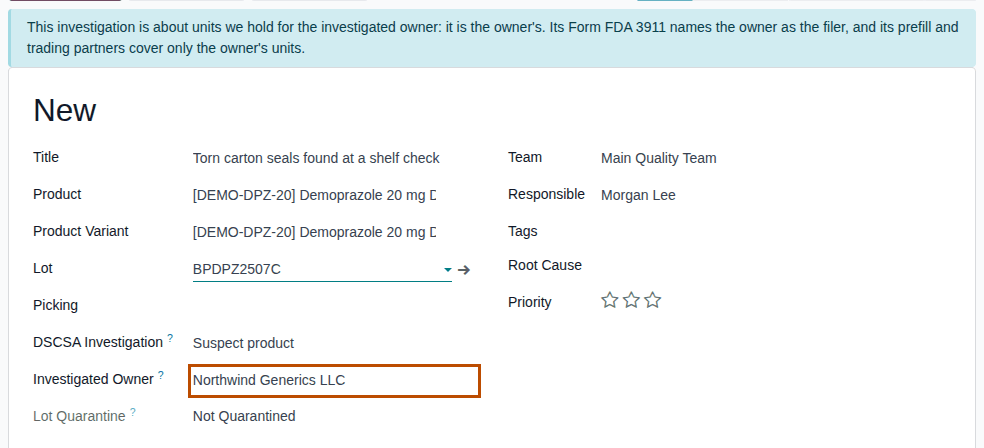
| Blue banner | none | on an owner's investigation: "This investigation is about units we hold for the investigated owner: it is the owner's. Its Form FDA 3911 names the owner as the filer, and its prefill and trading partners cover only the owner's units." |
| Form FDA 3911 items 13 and 15 (quantity, serials) | the lot's units in your custody | only the investigated owner's units, or only yours on your own investigation |
| Items 21–24 | your company, your D-U-N-S, your DSCSA role, the Responsible | on an owner's investigation: the owner and its profile's TI Business Address; no D-U-N-S; the owner's DSCSA role; the owner profile's first Notice Contact (else the owner); and the line "Prepared for OWNER, the owner of the product and the filer of this notification, by YOUR-COMPANY." |
| Find Trading Partners | every supplier and customer of the lot | only the investigated owner's suppliers and the customers it sold to; only yours on your own investigation |
| Automatic investigations of a quarantine | one per lot | the owner's, or one per holder of the lot (3PL-QA-03) |
| Split per Owner button | not shown | on DSCSA investigations with a lot, while 3PL is on (3PL-QA-04) |
| Suspect Investigations list | as without 3PL | an Investigated Owner column, a search field and the Investigated Owner grouping |
Two things stay as they are: an investigation's Quarantine Lot holds the whole lot, every owner's units and yours (3PL-QA-05); and owners don't see investigations in the owner portal. They learn of holds from their owner notices (Find and read the notices sent to an owner), and of anything else only from what you send them (3PL-QA-06).
Before the first owner's investigation, check each owner profile (Create an owner profile):
- Notice Contacts: the first contact becomes item 24 (contact person) of the owner's Form FDA 3911, and receives the owner notices.
- TI Business Address: item 21's address.
Never put an owner's name in an investigation's Title. The title becomes part of the lot's quarantine reason, and every owner of the lot receives that reason in its hold notice ("Reason: QA00003 (Suspect product): Quarantine of lot BPDPZ2508K").
Open an investigation of an owner's units
Open an investigation by hand for a lot you hold for an owner. When every unit of the lot in your custody is one owner's, the software suggests that owner; otherwise you choose the owner, or leave the field empty for your own units.
Who: Rx Tracking User or Manager
Requires: Odoo Enterprise with the Quality app, Rx Tracking (DSCSA) - Suspect Product Investigations, and Rx Tracking (DSCSA): 3PL and title model, with 3PL switched on. Rx Tracking (DSCSA): 3PL Quality bridge installs automatically.
Before you start:
- The owner has an owner profile in your company, with its Notice Contacts and TI Business Address (3PL-QA-01).
- The company's investigation data is set up: Set up investigations.
-
Go to Inventory ‣ Rx Tracking ‣ Suspect Investigations and select New.
Result: DSCSA Investigation is Suspect product and Investigated Owner shows "Our own stock".
-
In Title, describe what was found, without any owner's name, for example
Torn carton seals found at a shelf check. -
In Product, select the product, for example [DEMO-DPZ-20] Demoprazole 20 mg Delayed-Release Capsules, 30 count.
-
In Lot, select the lot, for example
BPDPZ2507C(units held only for Northwind).Result: Investigated Owner shows Northwind Generics LLC, and the blue banner appears above the form.
-
Select the Form FDA 3911 tab and check the owner's items.
Result: Company Category is the owner's role (Manufacturer for Northwind), Contact Person is the owner's first notice contact (Northwind Generics LLC, Dana Reyes), and the quantity and serials are the owner's units only (
6 Units,600000013001to600000013006). -
Select the ☁ (Save manually) icon.
Result: the investigation gets its reference (QA000NN) and stays in the stage New, with the banner. Records: the investigation,
with Investigated Owner set and its Form FDA 3911 items filled in for the owner.
Variants
- A lot held by several owners, or by owners and you (for example
BPDPZ2508K): Investigated Owner stays empty. Select the owner in it, or leave it empty to investigate your own units. The items fill in again for your choice (3PL-QA-07). To cover every holder, save one investigation and use Split per Owner. - Your own units of a lot that only an owner holds: leave Investigated Owner empty. The quantity and serials stay empty, because you hold none of the lot.
If it doesn't work
- Investigated Owner isn't shown: the company has no owner profile yet (the field appears with the first one), or you have no Rx Tracking right. See 3PL-QA-01 and The DSCSA fields and tabs aren't shown.
- "… is not an owner (3PL client) of …: it has no owner profile." (an import): see Error: "… is not an owner (3PL client) of …".
- "… leave the investigated owner empty for our own stock.": see Error: "… leave the investigated owner empty …".
- "… only a DSCSA investigation has an investigated owner." when you clear DSCSA Investigation: see Error: "… only a DSCSA investigation has an investigated owner.".
Follow the automatic investigations of a lot that holds owners' units
While Open an investigation on quarantine is on, every lot quarantine opens an investigation (Follow the investigation a lot quarantine opens). For a lot that holds owners' units, the software gives that investigation to the owner, or splits it: one investigation per holder of the lot, each with only its own units. Each owner with units also gets a Hold notice.
Who: Rx Tracking User or Manager (an Rx Tracking Manager quarantines the lot)
Requires: Odoo Enterprise with the Quality app, Rx Tracking (DSCSA) - Suspect Product Investigations, and Rx Tracking (DSCSA): 3PL and title model, with 3PL switched on. Rx Tracking (DSCSA): 3PL Quality bridge installs automatically.
Before you start:
- The lot was quarantined in any way except an investigation's Quarantine Lot, for example from the lot form
(Put a lot that holds owner units on hold), here lot
BPPTM2509Aof Prototamol, which holds 1 unit of yours and 2 of Summit's.
-
Go to Inventory ‣ Products ‣ Lots / Serial Numbers, search the lot, and open it. The list is grouped by Location: open the group that holds the lot (for example WH/Stock), then the lot.
Result: the lot is Quarantined, and its chatter says "Suspect-product investigation QA000NN split per owner: QA000NN opened.".
-
Select the Quality Alerts smart button.
Result: the lot's investigations are listed, one per holder, all titled "Quarantine of lot BPPTM2509A".
-
Open each investigation.
Result: the first is yours (Investigated Owner empty,
1 Units, serial600000023001); the other is Summit's (Summit Specialty Pharma Inc., the blue banner,2 Units, serials600000023002, 600000023003, Contact Person Summit Compliance Office). The copy's chatter says "Opened by splitting investigation QA000NN per owner.".
Result: every holder of the lot has an open investigation of its own units. Records: one investigation per holder; one Hold notice per owner with units (Find and read the notices sent to an owner); the lot's quarantine in its chatter.
To see all owners' investigations at once, go to Inventory ‣ Rx Tracking ‣ Suspect Investigations, search the lot, and group by Investigated Owner.
Variants
- A lot held for one owner only (for example
BPDPZ2509N, Northwind's data-pending lot): one investigation, with that owner. - A lot of your own units only: one investigation with no owner, as without 3PL.
- The lot already has open investigations: a new quarantine adds its reason to them and opens nothing new. A holder without an open
investigation (your own units of
BPDPZ2508K, for example) gets one with Split per Owner. - An owner without an owner profile is skipped: the quarantine is never refused for it.
Split an investigation per owner
Open, from one investigation, an investigation for each other holder of its lot that has none open: after an investigation's own Quarantine Lot, which opens nothing for the other holders, or when you opened one by hand for one owner. The copies carry the event (type, determination, classification, title, description) but not the filing.
Who: Rx Tracking User or Manager
Requires: Odoo Enterprise with the Quality app, Rx Tracking (DSCSA) - Suspect Product Investigations, and Rx Tracking (DSCSA): 3PL and title model, with 3PL switched on. Rx Tracking (DSCSA): 3PL Quality bridge installs automatically.
Before you start:
- The investigation is a DSCSA investigation with a Lot, and it isn't closed.
-
Go to Inventory ‣ Rx Tracking ‣ Suspect Investigations and open the investigation, for example
QA00003(Northwind's, lot BPDPZ2508K, which you, Northwind and Summit hold). -
Select Split per Owner.
Result: the Investigations per Owner list opens as a page (its breadcrumb names the investigation, then Investigations per Owner), with the columns of the Suspect Investigations list. It lists this investigation and the new ones: here
QA00003and a new investigation of your own units (Investigated Owner empty). Summit's is not created again: it already has one open.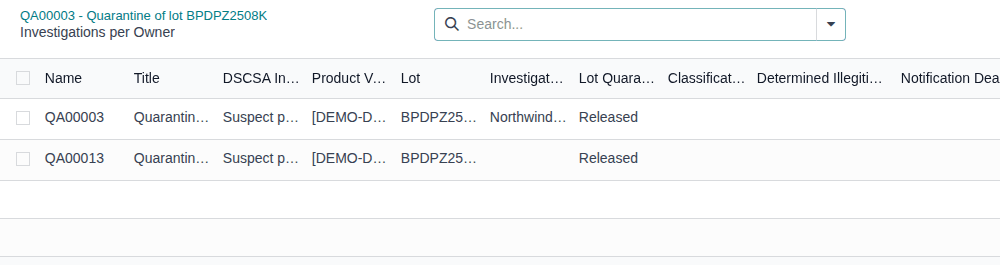
-
Open each new investigation and continue it as its own case, for example with Find the trading partners to notify.
Result: each holder of the lot has an open investigation. Records: one new investigation per holder that had none, with the chatter line "Opened by splitting investigation QA00003 per owner."; its Form FDA 3911 quantity, serials, company category and contact filled in for its owner. Copied from the original: the type, determination, classification, title, description, event and product items, and the Responsible. Not copied: FDA Notified On, FDA Incident Number, Trading Partners Notified On, the termination dates and the trading partners. An illegitimate copy has the same deadline and its own deadline activity.
If it doesn't work
- "Every owner holding units of lot LOT in our custody already has an open investigation of it.": nothing to split. See Error: "Every owner holding units of lot … already has an open investigation of it.".
- "INVESTIGATION is closed.": see Error: "… is closed." when you split.
- Split per Owner isn't shown: the investigation has no Lot or no DSCSA Investigation, or 3PL is off in its company. See Errors when an investigation is split through the API.
- "Only DSCSA users can change the investigated owner or split an investigation.": you have no Rx Tracking right. See Error: "Only DSCSA users can …".
Quarantine and release, from an investigation, a lot that holds owners' units
An investigation's Quarantine Lot holds the whole lot: every owner's units and yours. Each owner with units gets a Suspect product notice. Releasing needs each owner's release instruction, as any release of a lot with owner units.
Who: Rx Tracking Manager
Requires: Odoo Enterprise with the Quality app, Rx Tracking (DSCSA) - Suspect Product Investigations, and Rx Tracking (DSCSA): 3PL and title model, with 3PL switched on. Rx Tracking (DSCSA): 3PL Quality bridge installs automatically.
Before you start:
- The investigation has a Lot, and the lot is not quarantined.
Quarantine the lot
-
Open the investigation, for example
QA00003, and select Quarantine Lot.Result: Lot Quarantine is Quarantined, and the header shows Release Lot instead of Quarantine Lot.
-
Go to Inventory ‣ Rx Tracking ‣ Owner Notices (in the 3PL ‣ Operations section).
Result: one Suspect product notice per owner with units, for example "Suspect product notice to Northwind Generics LLC (lot BPDPZ2508K)" and the same for Summit Specialty Pharma Inc. Each gives the reason "QA00003 (Suspect product): Quarantine of lot BPDPZ2508K" and the owner's number of units held.
-
To investigate the other holders' units, select Split per Owner on the investigation: the quarantine opens no investigation for them.
Result: the lot is quarantined for everyone. Records: the lot's quarantine and reason; one Suspect product notice per owner with units, emailed to its notice contacts.
Release the lot
Known issue (PF-W15-01): the Release Lot window of a lot that holds owner units can't be confirmed from the screen: step 3 ends in a Validation Error ("… a mandatory field is not set. … Model: Owner Release Instruction (Release Window) (dscsa.lot.quarantine.owner.line) Field: Lot (lot_id)"), and the lot stays Quarantined. There is no workaround in the screens: ask your implementer to release the lot through Odoo's external API with each owner's instruction (see Release a lot that holds owner units, with each owner's release instruction). Lots of your own units only release normally.
-
On the investigation, select Release Lot.
Result: the Release Lot window shows the lot, its Current Quarantine Reason, a Reason field, and one row per owner: Lot, Owner, Required, Recorded Instruction, Reference, Received Via and Received On.
-
Enter the Reason, and on each owner's row pick its Recorded Instruction or type its Reference, as in Release a lot that holds owner units.
-
Select Release.
Result: as designed, the lot is released and each owner gets a Release notice. The investigation stays open: releasing doesn't close it (Close an investigation).
If it doesn't work
- "Validation Error … Field: Lot (lot_id)": the known issue above. See Error: "Validation Error … Owner Release Instruction (Release Window) …".
- "Lot … is already quarantined." or another quarantine refusal: see Error: "Lot … is already quarantined.".
- Quarantine Lot and Release Lot aren't shown: you are not an Rx Tracking Manager. See The Quarantine Lot or Release Lot button isn't shown.
Prepare an owner's trading partners and Form FDA 3911, and hand them to the owner
When an owner's investigation is determined illegitimate, the owner files the notification: you prepare its trading partners and its Form FDA 3911 data sheet and send them to the owner. The software submits nothing to FDA and tells nobody; you record the dates the owner confirms.
Your procedure decides how the owner receives the data sheet and how it confirms its filing to you.
Who: Rx Tracking User or Manager
Requires: Odoo Enterprise with the Quality app, Rx Tracking (DSCSA) - Suspect Product Investigations, and Rx Tracking (DSCSA): 3PL and title model, with 3PL switched on. Rx Tracking (DSCSA): 3PL Quality bridge installs automatically.
Before you start:
- The owner's investigation is determined illegitimate: Record that the product is illegitimate.
- The owner profile's first Notice Contact has an email address.
-
Open the owner's investigation and select the DSCSA Investigation tab.
-
Select Find Trading Partners.
Result: Trading Partners to Notify lists only the owner's suppliers and the customers it sold to, for example Bluepeak Pharmaceuticals Inc. and Riverside Community Pharmacy on Northwind's
QA00003. Your own customers of the same lot are not listed. -
Complete the Form FDA 3911 tab as in Complete and print the Form FDA 3911 data sheet, then select Form FDA 3911 in the header.
Result: the data sheet downloads as
Form_3911_QA000NN.pdf. Under the title it says "Prepared for Northwind Generics LLC, the owner of the product and the filer of this notification, by Demo Rx Distribution LLC."; item 21 is the owner at its TI business address (600 College Road East, Princeton, NJ); item 22 its role; item 23 (D-U-N-S) is blank for the owner to add; item 24 its notice contact.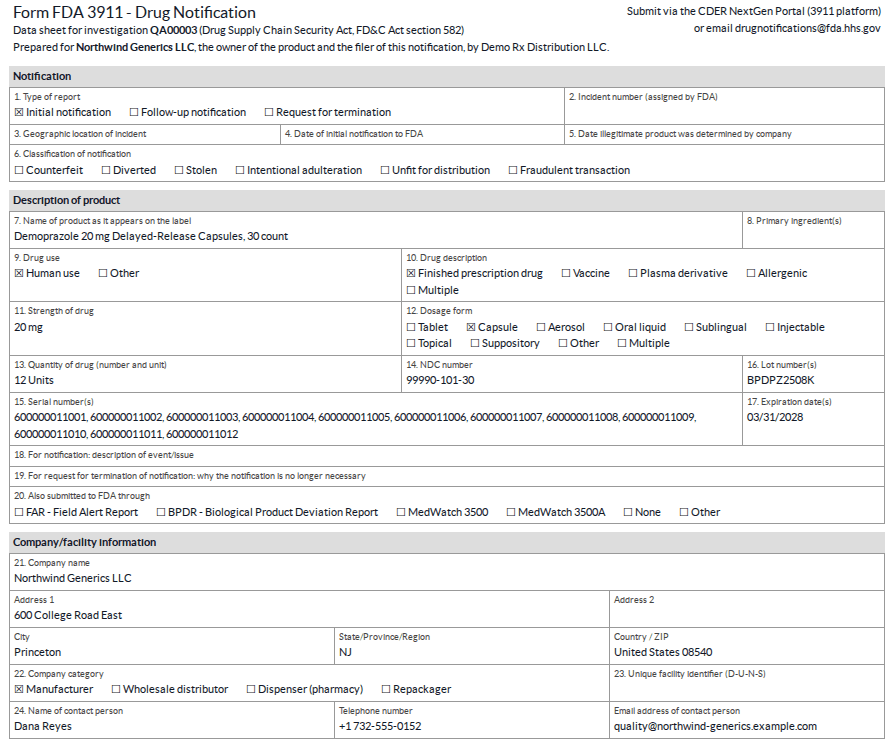
-
In the chatter, select Send message, then the expand icon (Full composer).
Result: the Compose Email window opens with To and Subject (the investigation's reference and title).
-
In To, select the owner's notice contact, for example Northwind Generics LLC, Dana Reyes; attach the downloaded PDF with the paperclip icon; write your message.
-
Select Send.
Result: the message and its PDF are in the investigation's chatter.
-
When the owner confirms its filing, record FDA Notified On, FDA Incident Number and Trading Partners Notified On from its confirmation, as in Record the notifications to FDA and to the trading partners.
Result: the owner has its data sheet and its trading partners, and the investigation records what the owner confirmed. Records: the trading partners on the investigation; the email with the PDF in the chatter; the dates and the FDA incident number. Once FDA Notified On is set, the investigated owner can't change (3PL-QA-07).
Known issue (PF-A11-03): nothing in Odoo tells the owner that its investigation was determined illegitimate, and the data sheet can't be sent as an owner notice (no notice is created when you record the determination). Send it yourself (steps 4–6) or by your own channel, and keep the proof on the investigation.
If it doesn't work
- Find Trading Partners adds nothing: the owner has no receipt or sale of the lot recorded. See Find Trading Partners adds nobody, or isn't shown.
- Items of the data sheet are blank: see Items are blank on the Form FDA 3911 data sheet.
- "…: set the lot first.": the investigation has no Lot. See Errors when investigations are changed through an import or the API.
Change the investigated owner
Correct the owner of an investigation, or clear it to make it an investigation of your own units. The Form FDA 3911 items that depend on the owner are filled in again, so the previous owner's serials never stay on it.
Who: Rx Tracking User or Manager
Requires: Odoo Enterprise with the Quality app, Rx Tracking (DSCSA) - Suspect Product Investigations, and Rx Tracking (DSCSA): 3PL and title model. Rx Tracking (DSCSA): 3PL Quality bridge installs automatically.
Before you start:
- FDA Notified On is empty on the investigation. After it is set, open the other owner's investigation with Split per Owner instead.
-
Open the investigation, for example
QA000NNof your own units of lotBPPTM2509A. -
In Investigated Owner, select the owner, for example Summit Specialty Pharma Inc., or clear the field for your own stock.
Result: the banner appears (or disappears), and on the Form FDA 3911 tab the quantity, the serials, Company Category and Contact Person change to the new owner's (Summit:
2 Units, Summit Compliance Office). -
Select the ☁ (Save manually) icon.
Result: the investigation is the new owner's. Records: the chatter logs the change ("None → Summit Specialty Pharma Inc. (Investigated Owner)"); the owner-dependent items of Form FDA 3911 are the new owner's.
If it doesn't work
- Investigated Owner is read-only: FDA Notified On is set, so the filer is fixed. Use Split per Owner. See Error: "… FDA was notified for this investigation, so its investigated owner can't change.".
- "Only DSCSA users can change the investigated owner or split an investigation.": see Error: "Only DSCSA users can …".
- "… is not an owner (3PL client) of …" or "… leave the investigated owner empty for our own stock." (imports): see Error: "… is not an owner (3PL client) of …".